Building a Local XM Cloud Headless Stack with Docker and JSS Next.js
In this blog walks through an end-to-end headless Sitecore JSS starter + XM Cloud setup - how to start your headless project with Sitecore XM Cloud.
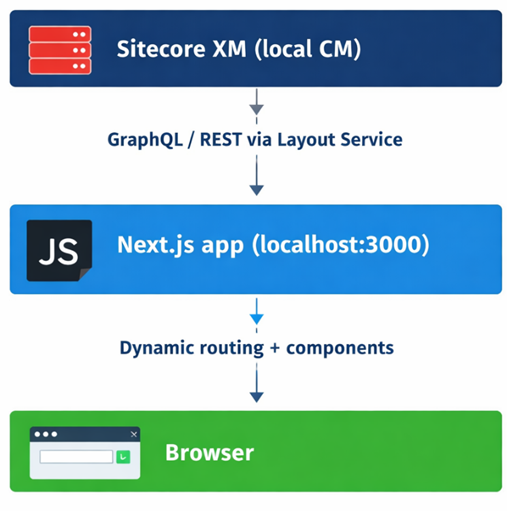
Sitecore XM (local CM) → GraphQL/REST via Layout Service → Next.js app (localhost:3000) → Browser
- Sitecore = Content + Layout + Routing
- Next.js = Rendering engine
- GraphQL = Bridge
Prerequisites (Mandatory):
1. XM Cloud License XML file.
2. Clone https://github.com/Sitecorelabs/xmcloud-foundation-head.git
3. Run .\xmcloud\local\init.ps1 -LicensePath C:\path\to\license.xml
4. Run up.ps1 to start Docker containers (xmcloudcm.localhost).
**Note**: Edit hosts file:
- Windows: C:\Windows\System32\drivers\etc\hosts
- Mac/Linux: /etc/hosts (sudo nano /etc/hosts)
Add:
127.0.0.1 xmcloudcm.localhost
127.0.0.1 www.fauna.localhost
5. Install Node.js 18+, npm install -g @sitecore-jss/sitecore-jss-cli
Step 1: Sitecore Provide XM Cloud Next.js starter so we need to install first in local note: this is not optional its mandatory if you want to work with xmcloud headless also starter reduce your time to creating from scratch everything in Next js. Run Below Command in local where you want to install Next js local
in your Xmcloud frontend blank folder run: npx create-sitecore-jss nextjs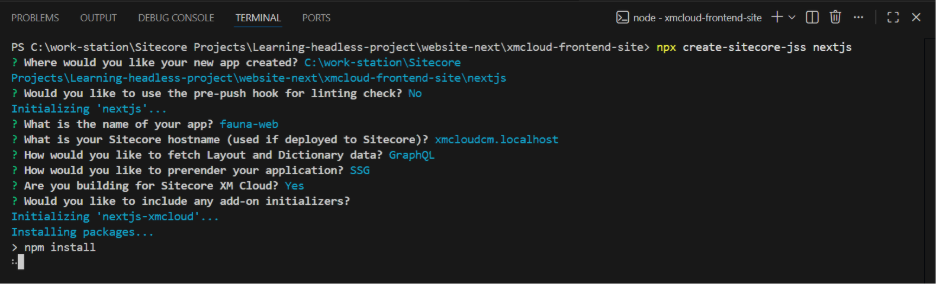
After few minutes you’ll see look like below screenshot: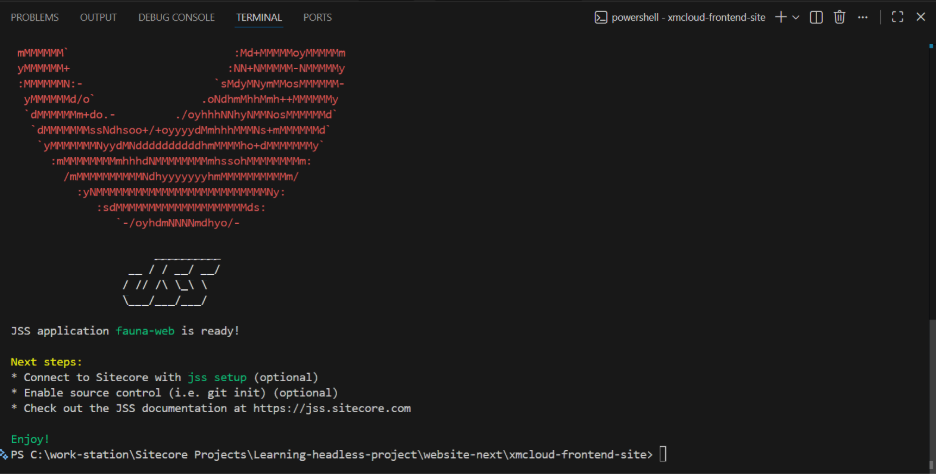
Now your frontend Next js sitecore starter app is ready…
JSS Setup (Required for Sitecore Connection)
1. cd your-nextjs-app-folder
2. Run: npx jss setup
3. Choose: "connect to XM Cloud"
4. Enter Deployment Secret from Sitecore: /sitecore/system/Settings/Services/JSS Services/App Services → Right-click → Insert → JSS App Service → Copy Secret
5. This creates scjssconfig.json linking your app to Sitecore
Step 2: Duplicate .env to .env.local (Because for local development we need .env.local file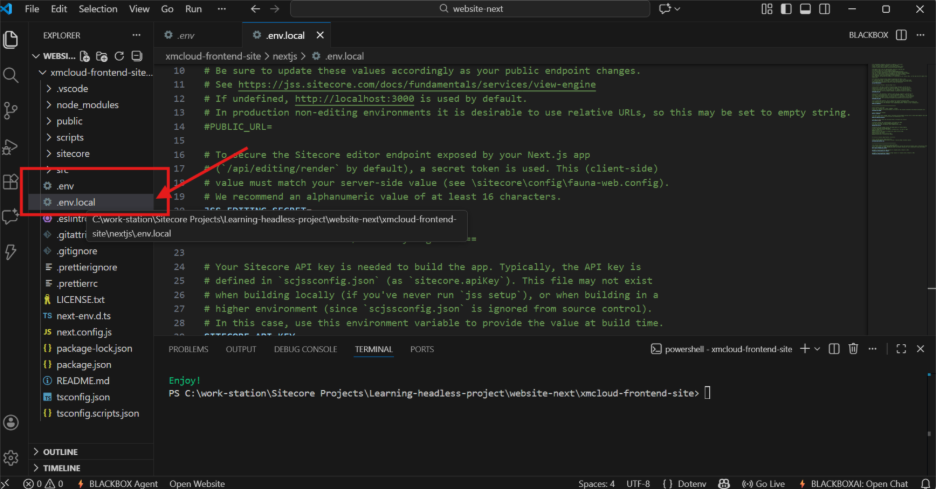
Step 3: Now We moved to sitecore because for start our Next Js starter we need sitecore site SITECORE_SITE_NAME & SITECORE_API_HOST & SITECORE_API_KEY
1. Open https://xmcloudcm.localhost/ and go to content manager.
2. Item path: /sitecore/content Right-click → Insert → Headless Site Collection Folder Name: your site name (eg. Fauna) for ref please see screenshot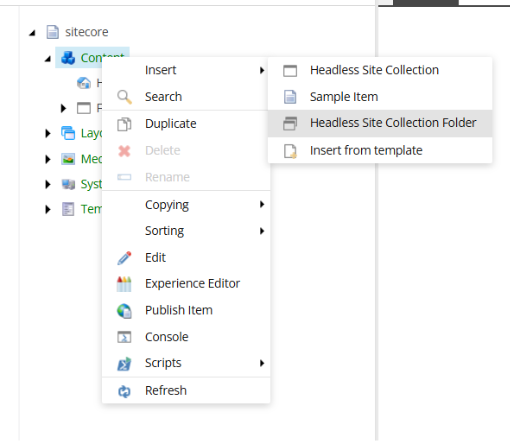
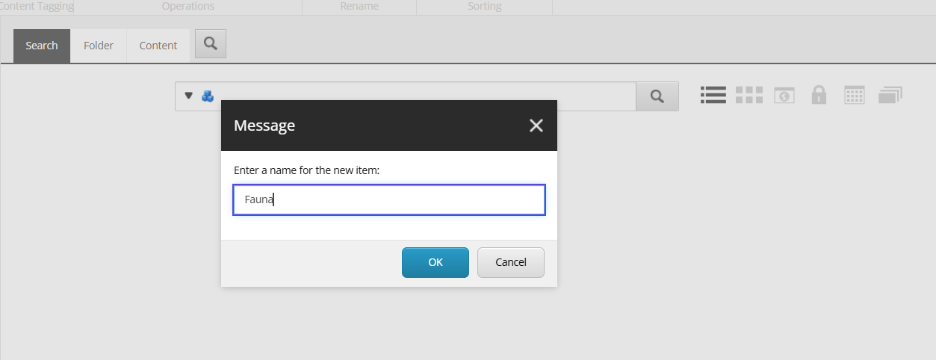
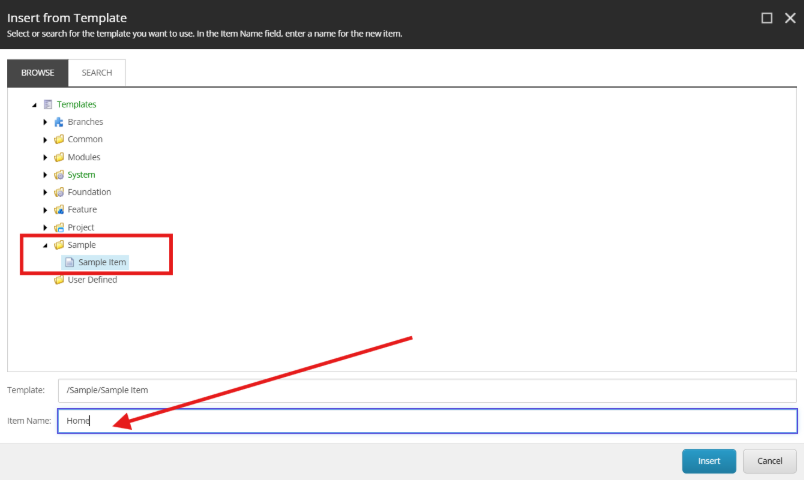
3. Create Home page in our site:
Item Path: /sitecore/content/Fauna
Right-click → Insert → Insert from template
Choose: Sample Item
Name: Home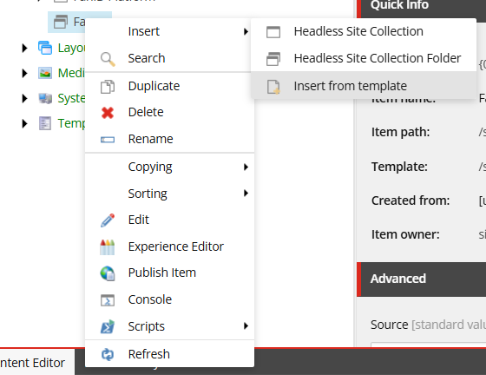
4. Creating required folder:
Under /sitecore/content/fauna create folders
(Insert → Headless Site Collection Folder):
Data
Dictionary
Presentation
Settings
Note : Please set icon to all folder for understanding. Please see icon for how to add icon in folder click on any folder where you want to add icon after in Header you see Configure option click on it and select any icon from sitecore default icon. 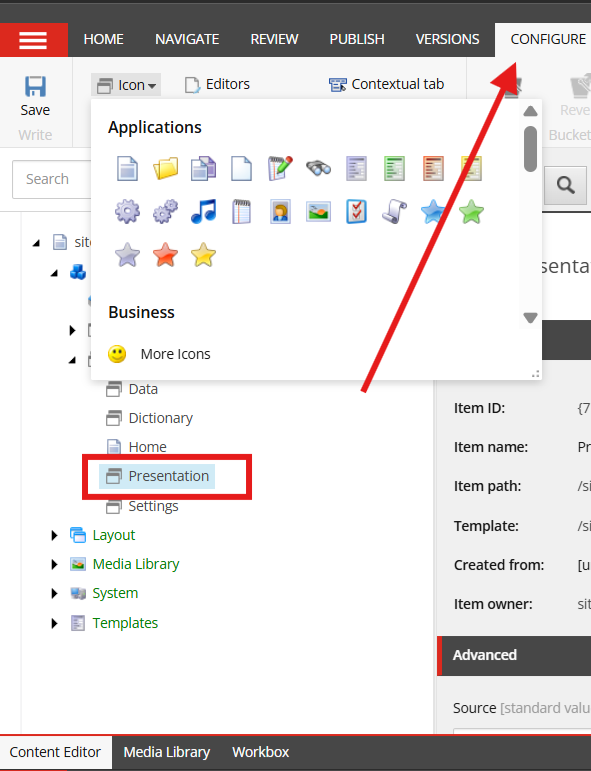
Its folders look like below screenshot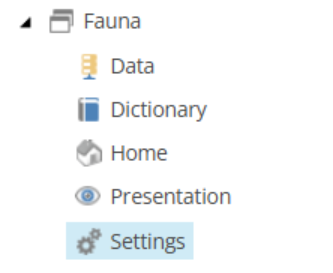
5. Site Grouping (MOST IMPORTANT)
under /sitecore/content/fauna/Settings
Right-click → Insert → Insert from template
/sitecore/templates/Foundation/Experience Accelerator/Multisite/Site Grouping
Name: Fauna
6. Select Version language like below screenshot default we need 1 otherwise Data fields not rendered.

7. For Site grouping add sitename and another value like attached screenshot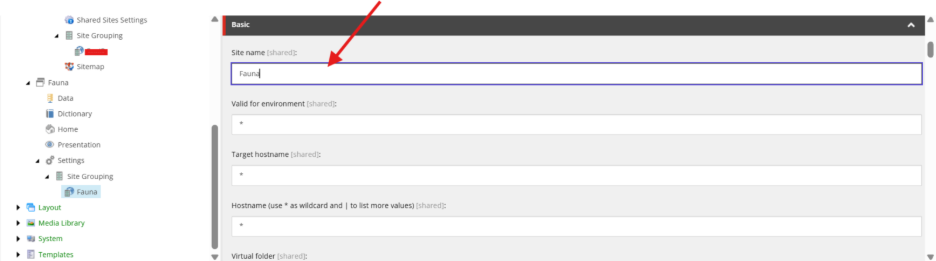
8. Now We need SITECORE_SITE_NAME, SITECORE_API_HOST, SITECORE_API_KEY for start our local Next js site connected with sitecore
for API Key generation follow this step:
/sitecore/system/Settings/Services/API Keys
Right-click → Insert → API Key 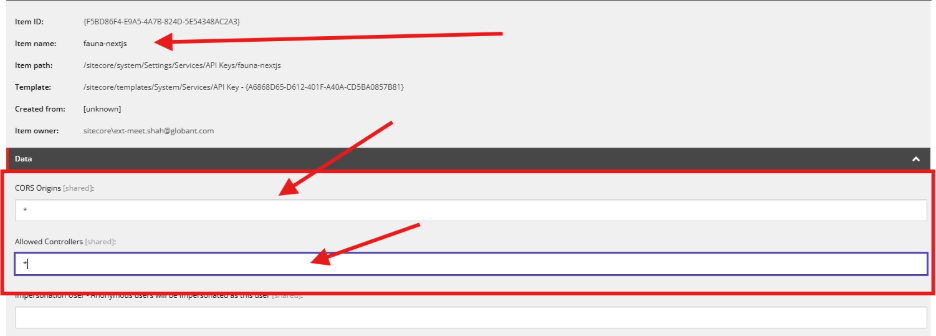
Note: Item ID is your SITECORE_API_KEYcopy this and paste into .env.local
Now Add all that 3 in .env.local like below
SITECORE_API_KEY= {F5BD86F4-E9A5-4A7B-824D-5E54348AC2A3}
SITECORE_API_HOST= https://xmcloudcm.localhost
SITECORE_SITE_NAME= Fauna
9. Make sure you add correct templets path for next js headless otherwise you facing 404 page or path not found. For ref please see attached screenshot. 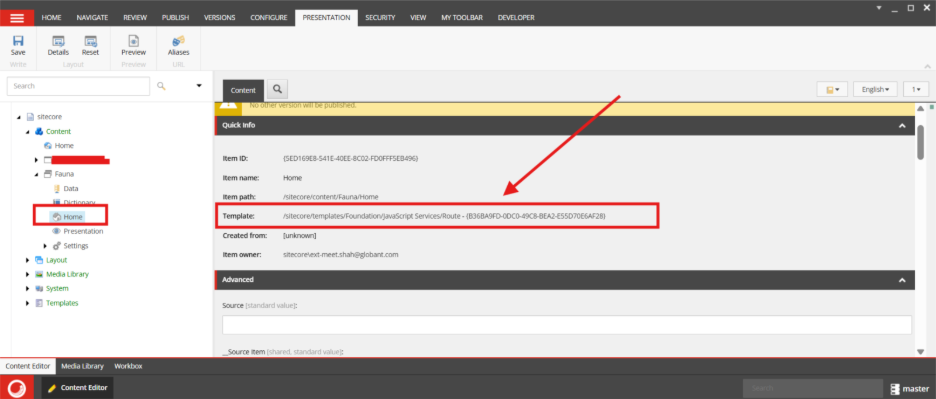
10. After Go in Home Item from nav select Presentation → Details → Shared Layout → Default → Edit
Select Headless Layout and empty Controls & Placeholder Settings 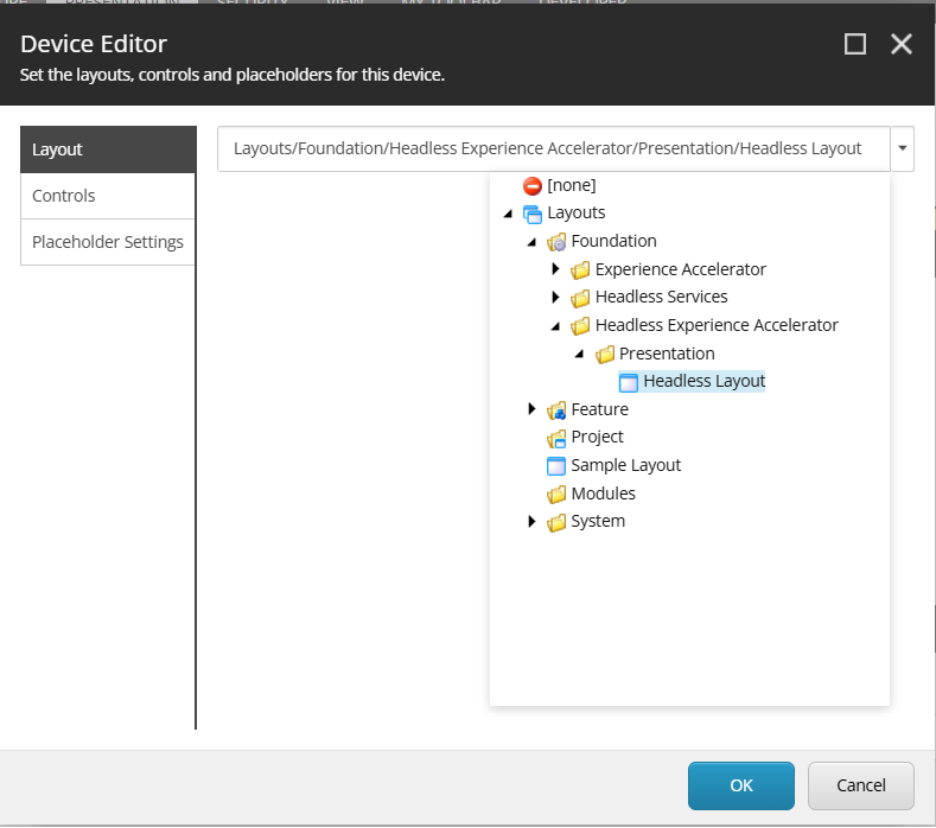
After updating .env.local run below command in your next app
npm run start:connected
11. Publish Your Site
1. In Sitecore CM (/sitecore/content/Fauna/Home), click Publish > Publish Site
(select Fauna site).
2. Publish from "http://default" to "http://published".
3. Refresh Next.js app—content now renders.
Note: Republish after changes.

Related Blogs

Read More
Read More

Read More