
How to Create and Use a Page Branch Template in Sitecore
In this blog, I have explained how to create a Page Branch template in Sitecore and use it to auto-generate child items whenever a new page is created.
I am using an Event Page as an example - every time an author creates a new event page, it should automatically get a data child item and a nested Event Section item, without doing it manually every time.
Below are the step-by-step details of how I created and wired up the Page Branch.
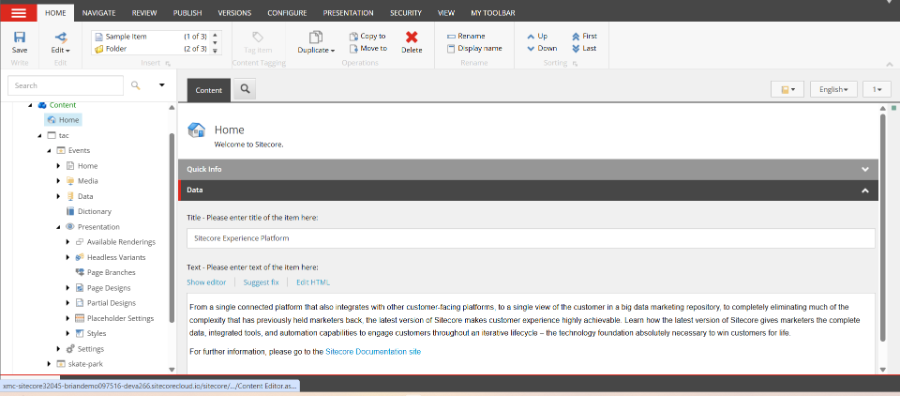
Step 1:- Locate the Page Branches folder
- In the Content Editor, under Presentation, there is already a Page Branches folder in the tree.
- This is where all page branch templates for the site are created and managed.
Step 2:- Create a new Page Branch
- Right-click the Page Branches folder and use the Create a new Page Branch option.
- Enter the branch name, select the Page template it is based on, and select the language.
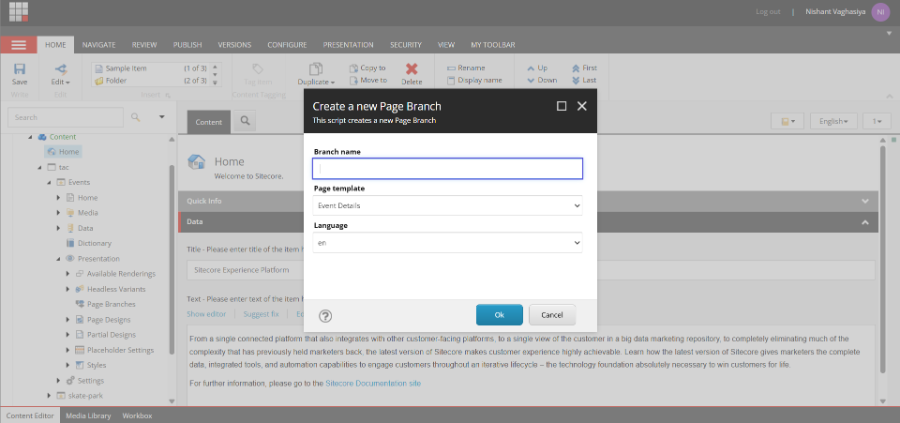
- I have named it Event Page and based it on the Event Details template.
- After clicking OK, an empty branch item gets created with no child items yet
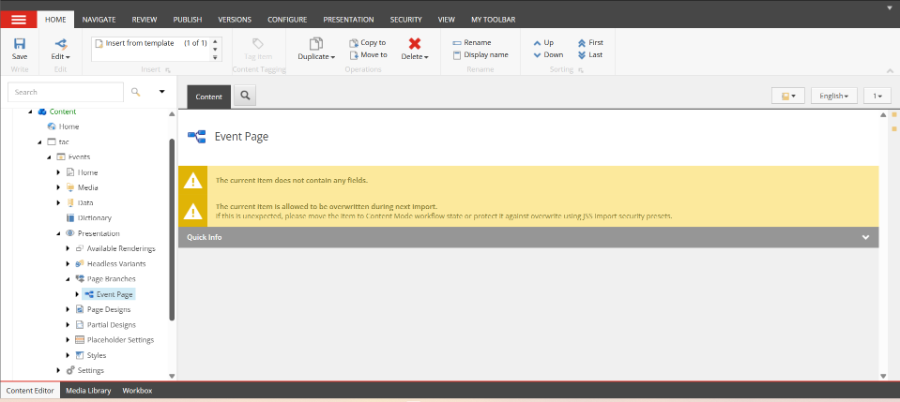
Step 3:- Add child items to the branch
- Right-click the branch item and use Insert from Template to add whatever child item should be created automatically.
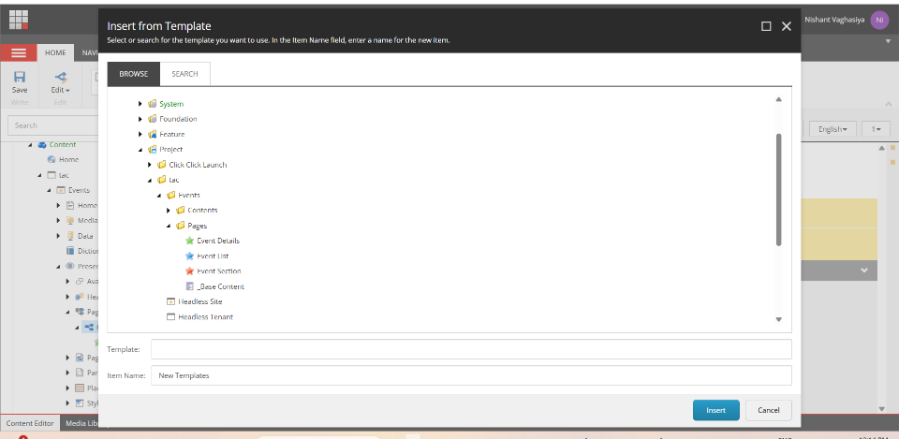
- Instead of giving the child item a normal name, I have used $name in the Item Name field.
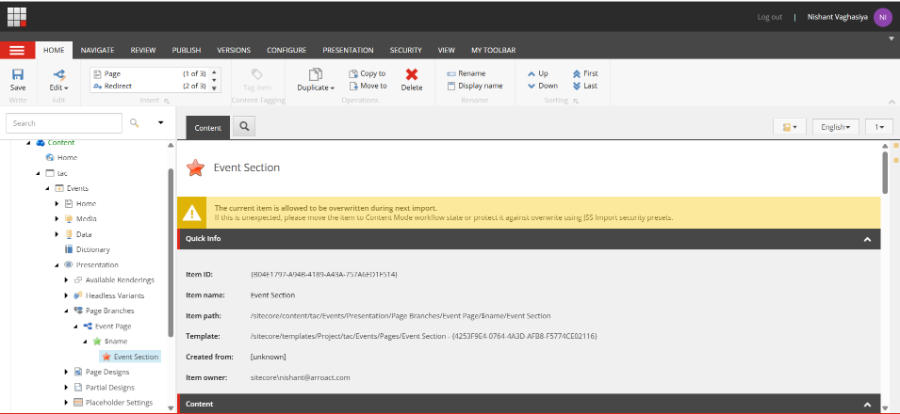
Note: Name is a placeholder. It means the child item will automatically take the same name as the new page being created. If you want the child item to always have one fixed name (like a folder always called Data), you can type that name directly instead of $name.
- I have also nested an Event Section item inside the $name item, so the branch creates a two-level structure, not just a single child.
Step 4:- Check the Insert menu
- At this point, right-clicking a page and checking Insert does not show Event Page as an option yet.
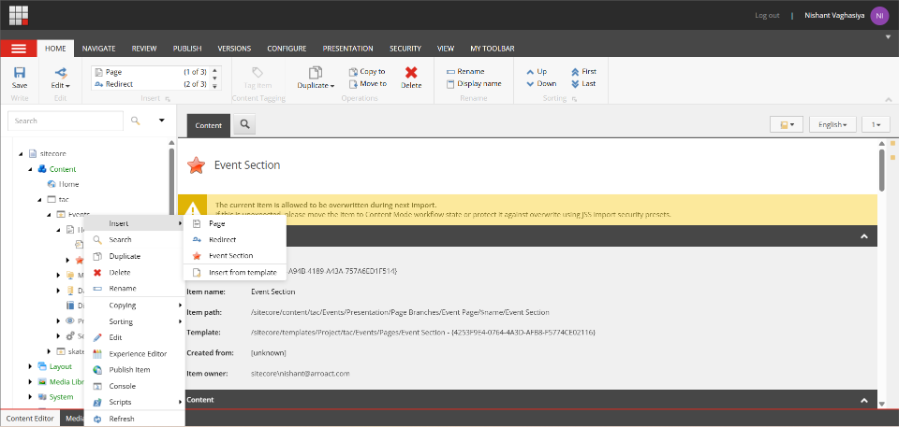
- Only Page, Redirect, and Event Section show up. Creating a branch template does not automatically make it available for use - it has to be enabled separately.
Step 5:- Try Insert Options (standard Sitecore way)
- Go to Configure tab and click Assign under Insert Options, on the item where you want the branch to be available
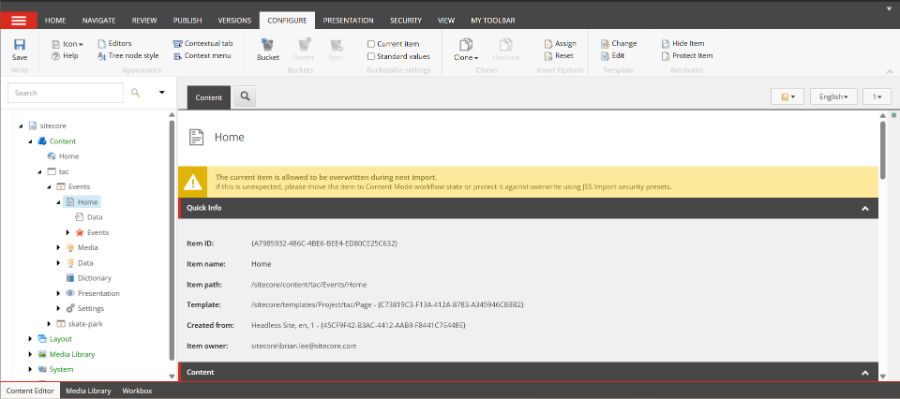
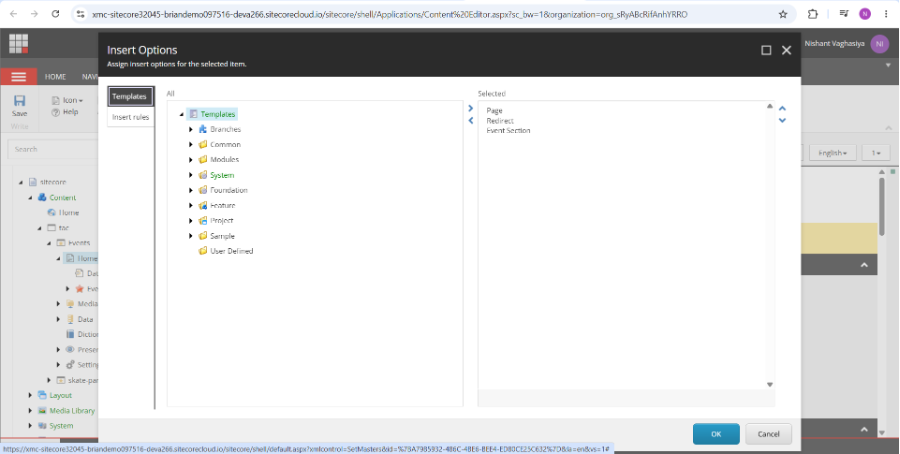
- I searched under Branches - Project - tac in this dialog, but the Event Page branch was not listed there.
- Checking the branch item's Template field explained why:
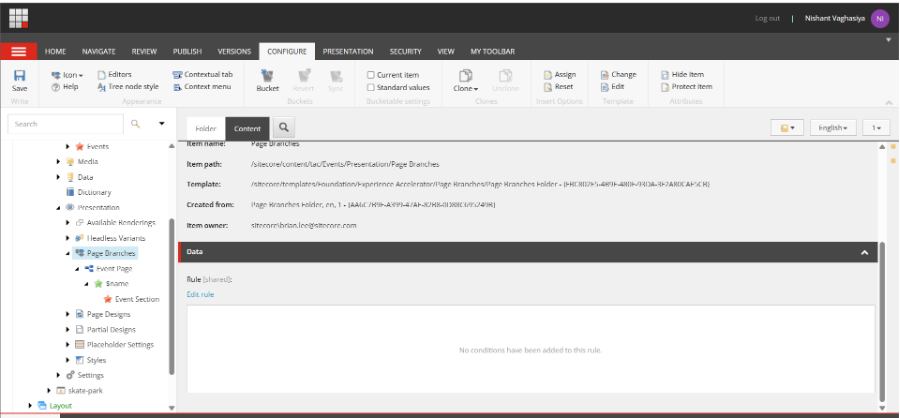
Template: .../Page Branches/Page Branches Folder
- This branch is stored in the content tree using a Page Branches feature, not as a classic branch template under /sitecore/templates/Branches. So it will not appear in the Insert Options dialog - it uses a Rule field instead.
Step 6:- Use the Rule field instead
- Open the branch item, go to the Rule field, and click Edit rule.
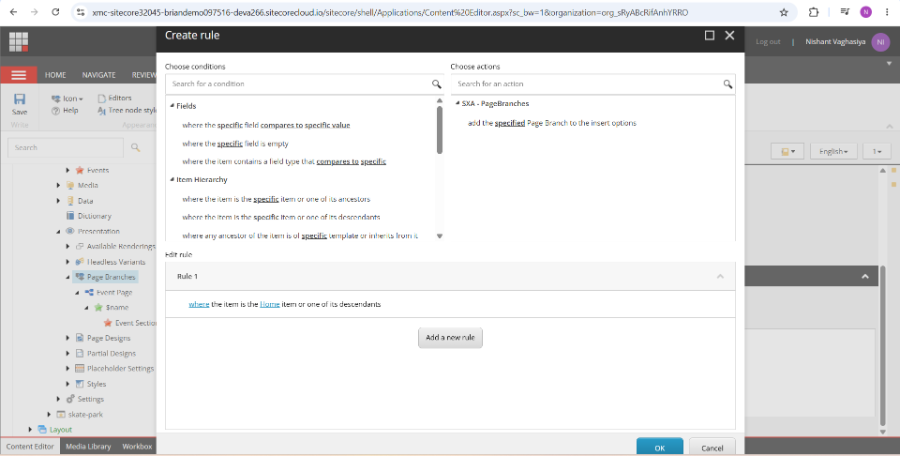
- I added the condition: where the item is the Home item or one of its descendants.
- Then added the action: add the Event Page Page Branch to the insert options.
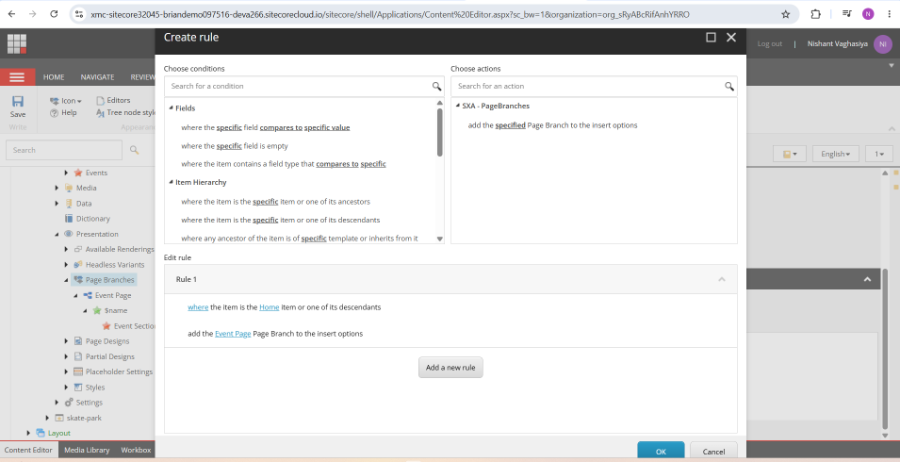
where the item is the Home item or one of its descendants
add the Event Page Page Branch to the insert options
- Clicked OK and saved the item.
Step 7:- Confirm it shows up in Insert menu
- Went back to the Home item, right-clicked, and checked Insert again.
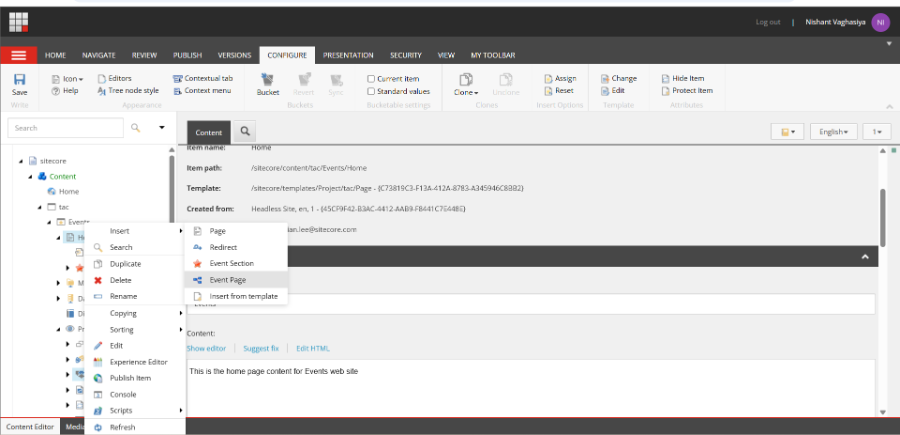
- Event Page now shows up in the list, along with Page, Redirect, and Event Section.
Step 8:- Create a page and check the result
- Clicked Event Page and named the new item Product Launch Webinar.
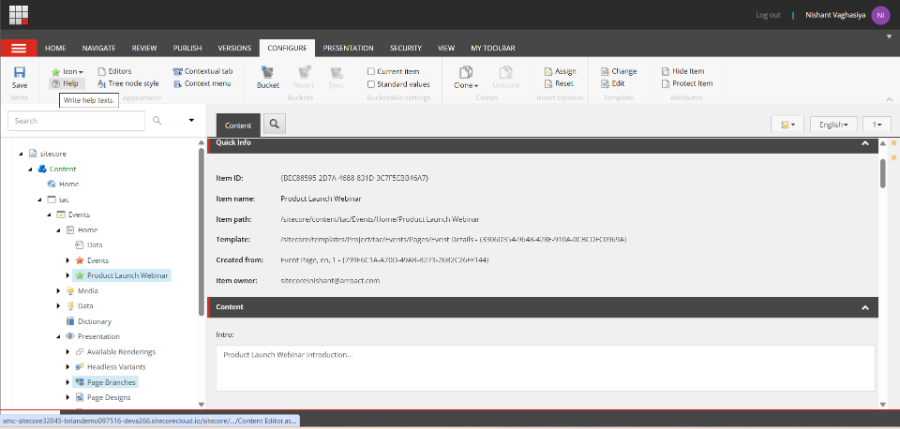
- Quick Info confirms Template is Event Details and Created from is Event Page.
- The tree already shows the nested child structure created automatically, without adding anything manually.
Branch template vs. rule-based branch
These are two different ways to do the same thing in Sitecore, so it's good to know both:
| Simple branch template | Rule-based branch | |
| Lives under | /sitecore/templates/Branches/... | /sitecore/content/.../Page Branches |
| How it gets hooked up | Insert Options - Assign on __Standard Values | A Rule field right on the branch item |
| Where you will find it | Most Sitecore projects | Bigger, multi-site Sitecore setups |
If your branch shows up under Insert Options directly, use that - it's the simpler path and works for most projects. If it's not there, check the branch item's Template field like I did - it's probably using the Rule field instead.
Where this is useful
- Page types where every page needs the same starter child items (data folders, SEO items, section items)
- Multi-site setups where different areas need different starter structures
- Reduces manual work for content authors and keeps the structure consistent every time
This is how I set up and used a Page Branch template in Sitecore. It saved a lot of manual repetitive work of adding the same child items every time a new page was created.

Related Blogs

On September 22, 2026, Sitecore deprecated Explorer. Its core jobs, creating content and…
Read More
For years, a big part of Sitecore work happened by clicking. You built templates in the…
Read More
I've spent a good part of this year wiring AI assistants into Sitecore projects. The…
Read MoreArroact is ready to help you grow.
Our Office

Westface, 519/520, Bhagwat Bungalows Rd, Thaltej, Ahmedabad, Gujarat 380059


Pay us a visit for a cup of coffee. We’ll be more than happy to welcome you.