Installation of Sitecore 10.4 with Docker Container – XP0 Topology
Here, Is a step-by-step installation of Sitecore 10.4 with docker container XP0 Topology.
Firstly, you need Pre-requisites before you install docker desktop application, your computer must require these configurations in your machine.
Software:
Windows 11 or latest
Hardware:
RAM: For, XP0 Topology to install minimum recommended RAM is 16GB or more.
CPU: We recommended a quad-core processor or higher.
DISK: We recommended minimum 25GB or more space should be free in your local machine, best practice to use SSD disk as an optimal performance when downloading and running docker container.
Docker Container:
Docker Desktop for windows – Latest stable version.
Windows PowerShell – Latest
Sitecore Container (https://github.com/Sitecore/container-deployment/releases/tag/sxp%2F10.4.1.012149.2344 )
Note: While installation Docker Desktop for windows make sure you must select windows container from given option, otherwise by default it will take as Linux container and Sitecore 10.4 or Sitecore topology does not support Linux container also it will shows error.
Once Docker Desktop for windows installed properly in your machine make sure docker desktop services running on OSType: Windows. By execute command docker info in PowerShell administrator mode you can see this information.

If you can see OSType: Linux you can change this OSType, Right click on docker icon and you can see option switch to windows container, simply you can click on that option and your docker desktop application now running on windows container.
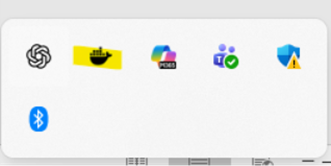
After all these steps completed for docker desktop application make sure your docker engine is in running mode. You can see left bottom corner for docker engine is it running or not.
Now, extract the Sitecore container folder which we have downloaded in our local machine. Make sure you can place that folder in right path which you can remember when we locate this path in PowerShell.
- Once extraction is done, open PowerShell in Administrator mode and navigate to the path. My path is “C:\SitecoreSetup\SitecoreContainerDeployment.10.4.0.010422.1819\compose\ltsc2022\xp0”.
- Run Command: “.\compose-init.ps1 -Topology xp0 -LicenseXmlPath “C:\license.xml” Note: Make sure your Sitecore license is in right place as mentioned in command or you can change manually the license path where it is located in your local.
while running this command and you can see any error like mentioned in below screenshot,
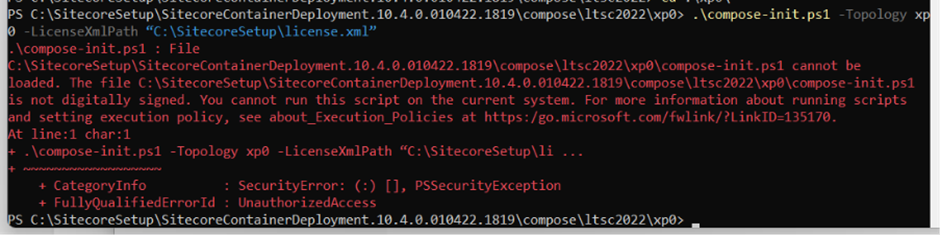
You can run this command: Set-ExecutionPolicy -ExecutionPolicy RemoteSigned if any permission issues rise, and then allow permission by mentioned yes to all option in it. Now you can again run above command.
- Now, run the command “docker-compose up -d” in detach mode.
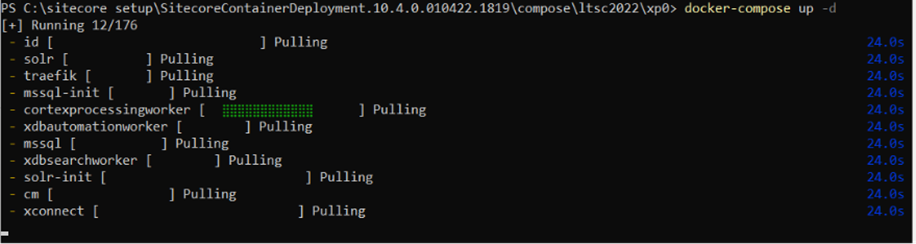
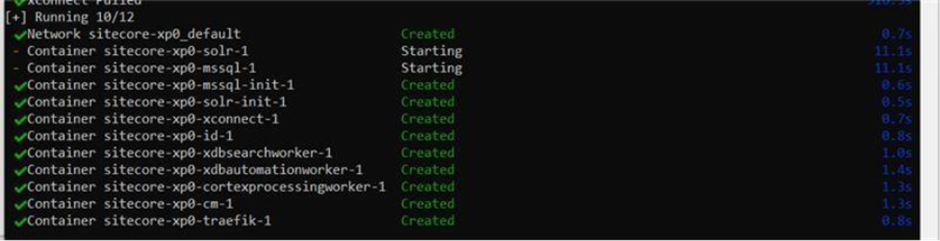
Navigate to the browser and login to Sitecore to look at the Launchpad.
Note: When navigate to the browser make sure all the docker services are in up and running and it shows healthy. Must be you will get error for sitecore-xp0-traefik-1 is unhealthy and it is not allocated to it port 80 or port 443.
Because without sitecore-xp0-traefik-1 service Sitecore instance won’t be able to run, to resolve this issue you can stop your ISS services and then restart the traefik-1 service from docker manually. Then again reload the browser, you can see your Sitecore admin page is up and running.
Once everything is up and running you can see in docker container all services are running. As shown in below screenshot.
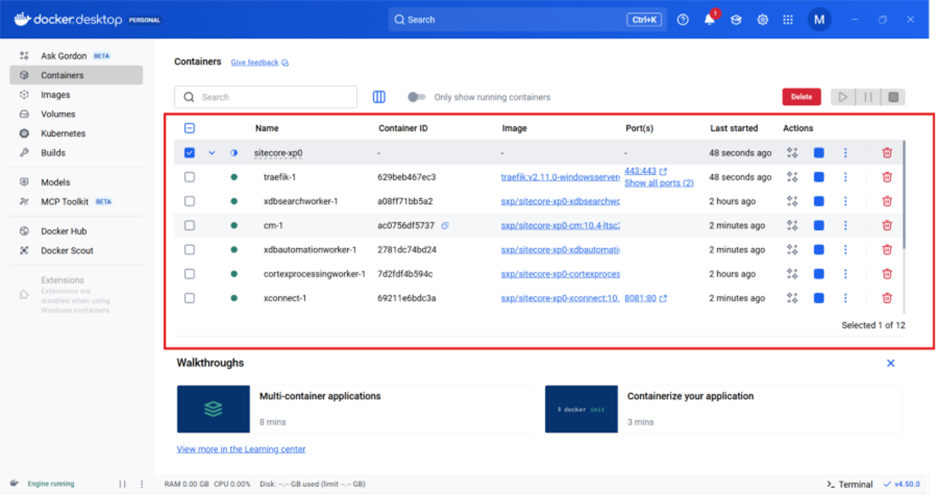
As mentioned previously without running all services it won’t be able to run Sitecore Instance.
Sitecore-traefik-1 services looks like this once it is running, as mentioned in below screenshot.
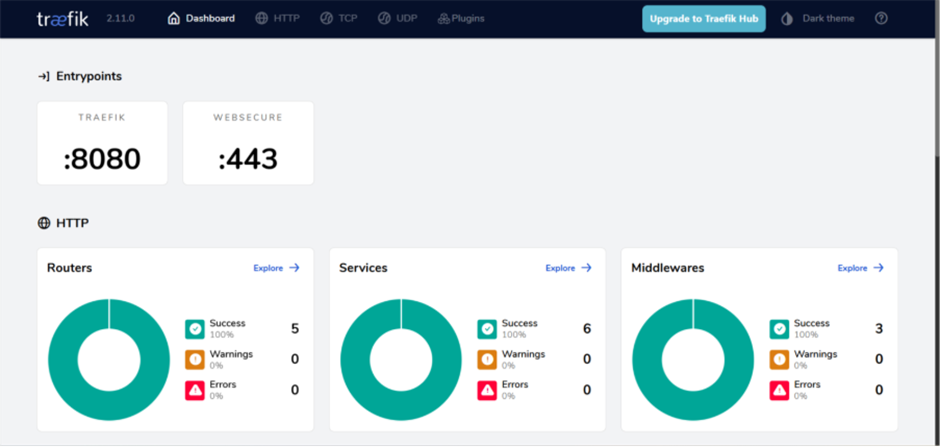
Sitecore Instance: run on https://xp0id.localhost/sitecore
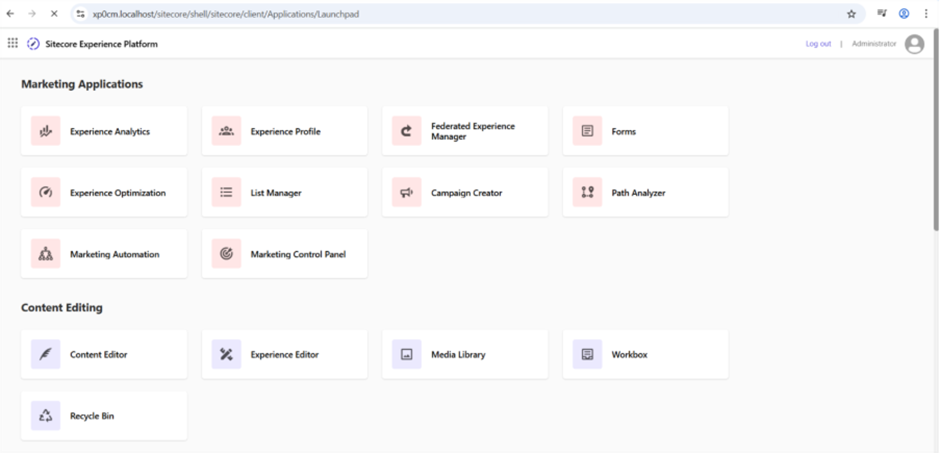
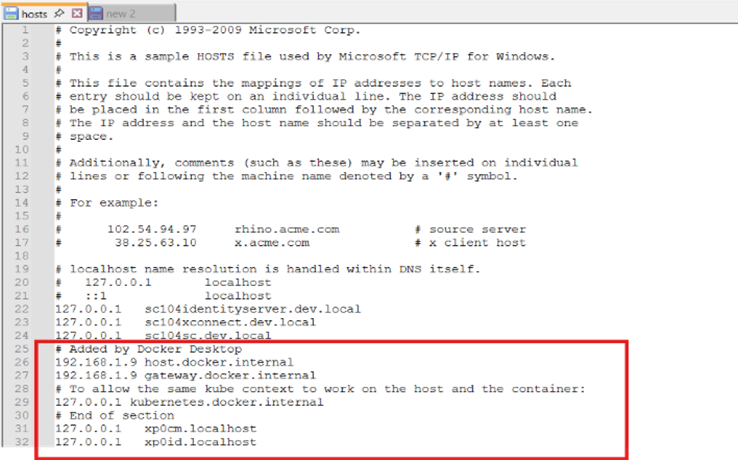
As well as you can see in host file to check all the hosting environment,

Related Blogs

Every content team hits the same wall eventually: one campaign idea needs to become a…
Read More
If you have worked with Sitecore for a while you may remember when Sitecore marketing…
Read More
On September 22, 2026, Sitecore deprecated Explorer. Its core jobs, creating content and…
Read MoreArroact is ready to help you grow.
Our Office

Westface, 519/520, Bhagwat Bungalows Rd, Thaltej, Ahmedabad, Gujarat 380059


Pay us a visit for a cup of coffee. We’ll be more than happy to welcome you.