Installing AEM as a Cloud Service: Author and Publish Setup
Adobe Experience Manager (AEM) as a Cloud Service provides a local Software Development Kit (SDK) that allows developers to run AEM locally for development and testing.
The AEM Cloud SDK includes a Quickstart JAR that can be used to run separate local Author and Publish instances. The Author instance provides the local environment for creating and managing content, while the Publish instance represents the published side of the AEM environment.
This guide walks through the complete process of setting up the AEM as a Cloud Service SDK locally on Windows, starting from installing the required Java version and downloading the SDK, through configuring and starting both Author and Publish instances.
Prerequisites:
- Windows
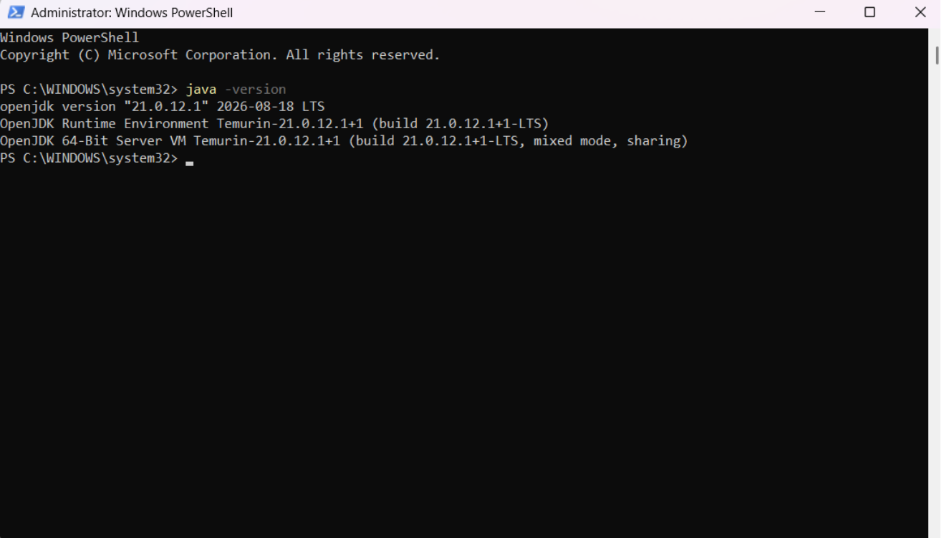
- Java 21
- AEM Cloud SDK
- Checking java -version
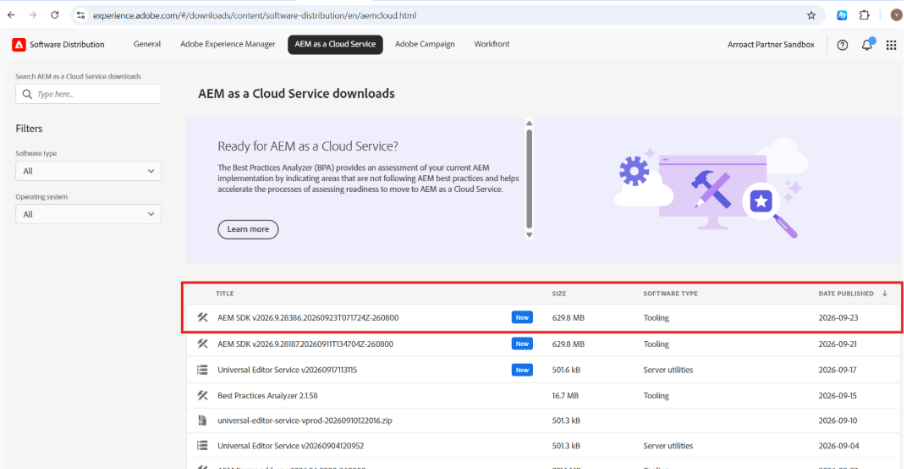
1. Download the AEM Cloud SDK
- Adobe Software Distribution
- SDK download
- Quickstart JAR
2. Set Up the AEM Author Instance
Create a dedicated folder for the local Author instance:
C:\AEM\aem-cloud-sdk\author\
Copy the original AEM Cloud SDK Quickstart JAR into this folder.
Rename the JAR to:
aem-author-p4502.jar
The author name identifies the instance as the Author tier, while p4502 indicates the port on which the local Author instance runs.
3. Start AEM Author
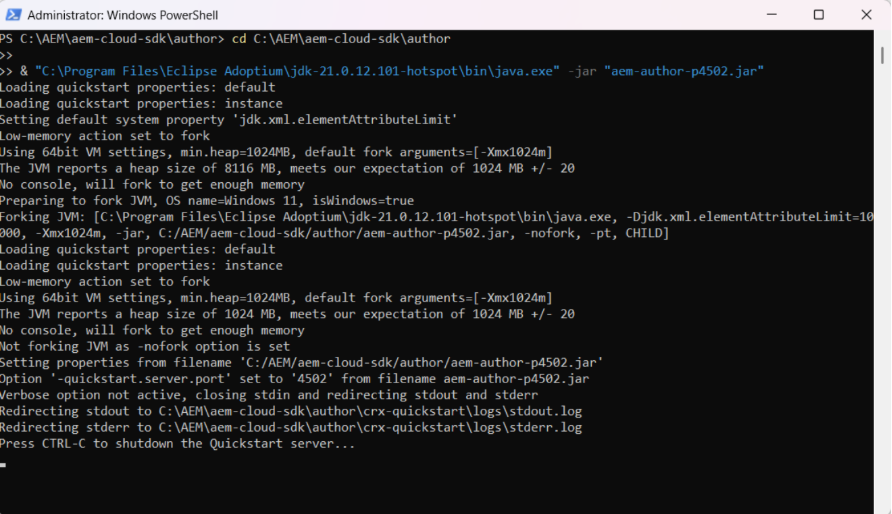
Start the Author instance using Java 21:
cd C:\AEM\aem-cloud-sdk\author\
& "C:\Program Files\Eclipse Adoptium\jdk-21.0.12.101-hotspot\bin\java.exe" -jar "aem-author-p4502.jar"
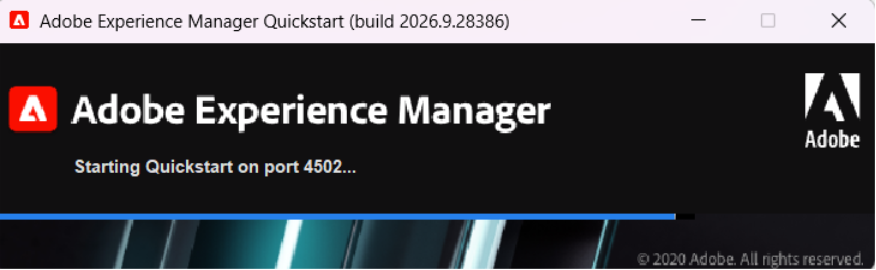
4. Access the AEM Author Instance
Open:
http://localhost:4502
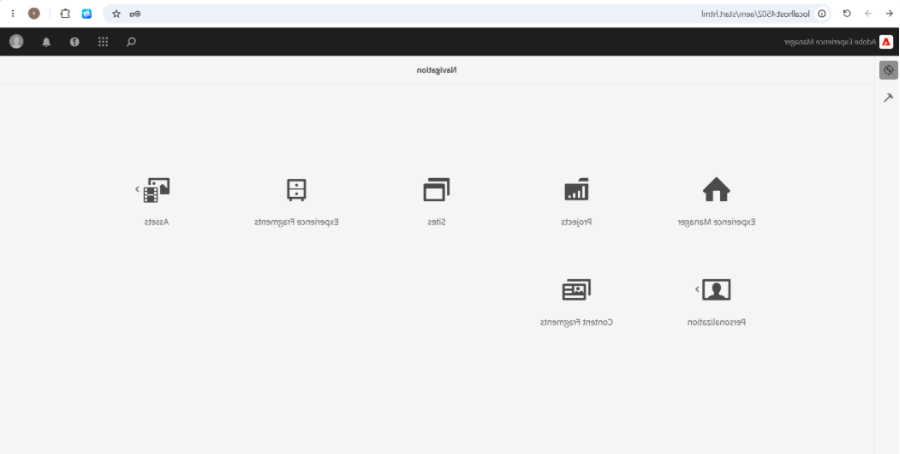
You can also access the Sites console directly:
http://localhost:4502/sites.html/content
After signing in with the local administrator credentials, the AEM Author interface is available.
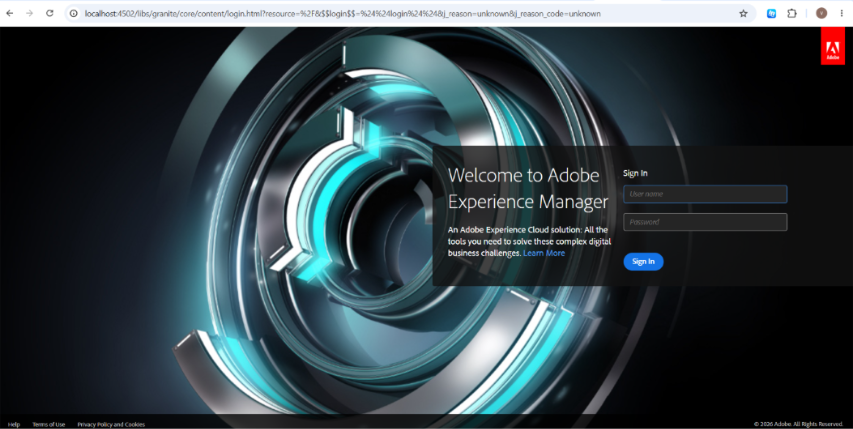
Understanding the Vanilla AEM Cloud SDK Instance
At this stage, the local Author instance is a clean or vanilla AEM Cloud SDK environment.
The AEM runtime itself is available with its standard platform functionality, but no custom application has been added yet.
There is currently:
- No custom project
- No custom components
- No custom templates
- No custom website
- No custom application
This distinction is important because starting the AEM Cloud SDK provides the AEM runtime; it does not automatically create a custom website or application.
5. Set Up the AEM Publish Instance
Create:
C:\AEM\aem-cloud-sdk\publish\
Copy the original Quickstart JAR.
Rename:
aem-publish-p4503.jar
Author and Publish are separate local AEM instances, so each instance uses its own runtime folder.
Start AEM Publish
Use:
cd C:\AEM\aem-cloud-sdk\publish\
& "C:\Program Files\Eclipse Adoptium\jdk-21.0.12.101-hotspot\bin\java.exe" -jar "aem-publish-p4503.jar"
When the Publish instance starts, AEM generates its own crx-quickstart runtime directory.
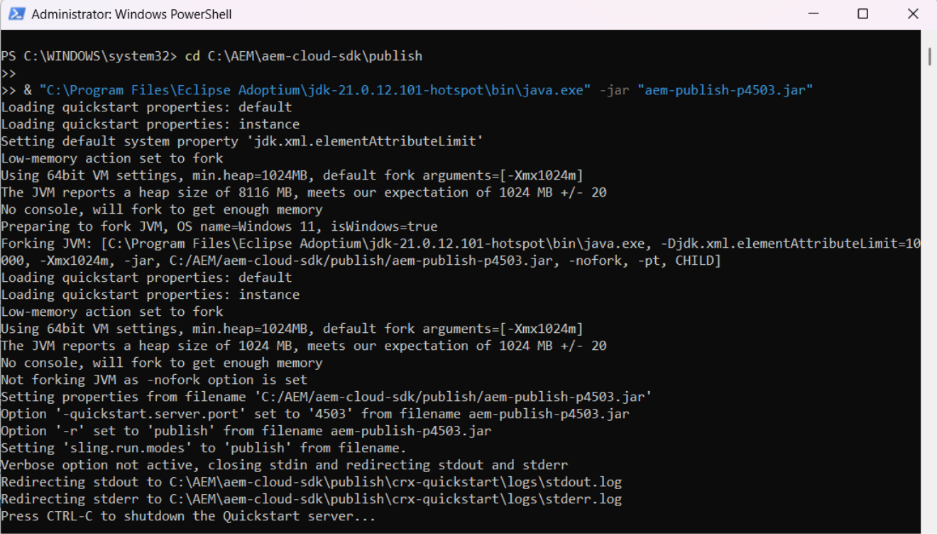
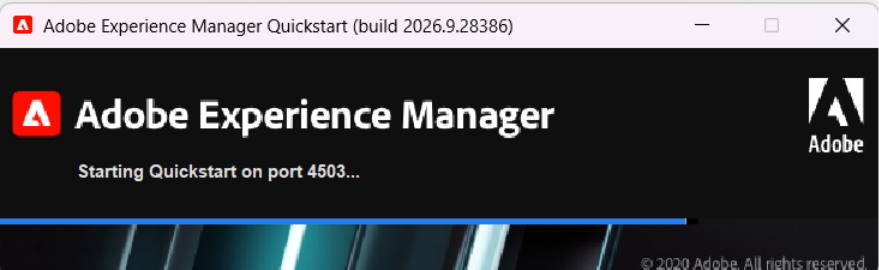
6.Access the AEM Publish Instance
Open:
http://localhost:4503
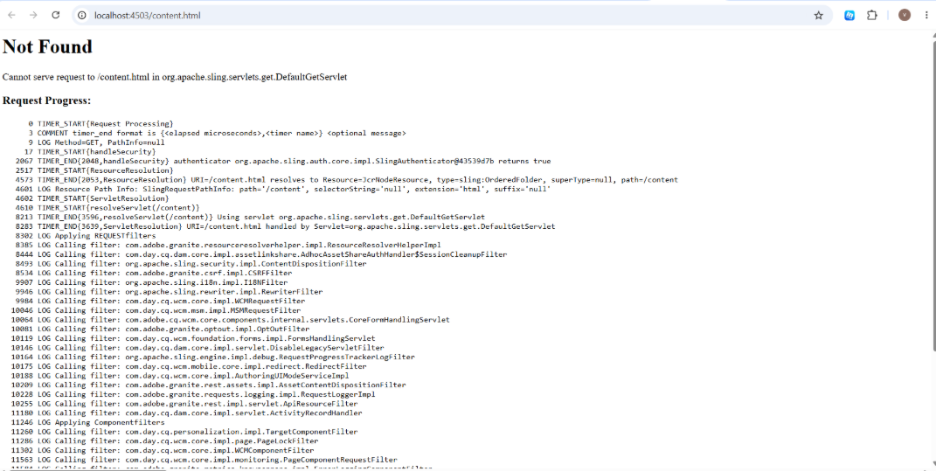
/content.html Returns 404 on Publish
This should be a normal section because it happened during your actual setup.
A running AEM Publish instance does not automatically mean that a website exists on Publish.
At this point:
AEM Runtime = Running
Website = Not created/published
Therefore, requesting a non-existent page can return 404.
Conclusion
The local AEM as a Cloud Service environment is properly set up now with the independent Author and Publish environment. The Author instance is running on port 4502, while the Publish instance is running on port 4503.
The local environment is currently a clean AEM Cloud SDK installation, without a custom project or website. This means that trying to access /content.html through the Publish environment may give a 404 Not Found error because no content is available at that path.
Once both Author and Publish are working fine, the local AEM as a Cloud Service environment can move forward with the next phase of the development process.

Related Blogs

For years, we built websites for two audiences: people and search engine crawlers. That…
Read More
Migrating a website to a new platform has always meant weeks of manual content mapping,…
Read More
For more than ten years, Adobe Experience Manager has supported businesses in content…
Read MoreArroact is ready to help you grow.
Our Office

Westface, 519/520, Bhagwat Bungalows Rd, Thaltej, Ahmedabad, Gujarat 380059


Pay us a visit for a cup of coffee. We’ll be more than happy to welcome you.