Partial Designs vs Page Designs in SitecoreAI: When to Use What and How to Set Them Up
In this blog, I'll explain the difference between Partial Designs and Page Designs in SitecoreAI , and show step by step how to set up shared parts like the header and footer so you manage them in one place.
The problem is common on almost every project: a site has many page types, but only one header and one footer. If every page or template carries its own copy of the header, one menu change turns into a cleanup job across dozens of pages. Headless SXA solves this with two items under each site's Presentation folder: Partial Designs and Page Designs.
Below are the step-by-step details, from creating a partial design to mapping a page design to a template. To capture every screen, I used a demo site called skate-park and created a Campaign Header partial design and a Campaign Landing page design. You can apply the same approach on your own site.
Prerequisites
- Access to a SitecoreAI (XM Cloud) environment with a Headless SXA site
- Access to the Content Editor and Pages
- Basic knowledge of Sitecore items, templates and placeholders
- Permission to create items under the site's Presentation folder
Partial Design vs Page Design in one minute
A Partial Design is a reusable fragment of a page, such as the header or footer. A Page Design is a combination of partial designs that forms the shell of a page. Templates are then mapped to a page design, so every new page gets the right shell automatically.
| Partial Design | Page Design | |
| What it is | A reusable fragment (header, footer, sidebar) | A combination of partial designs |
| Holds components? | Yes, in its placeholders | No, only a list of partial designs |
| Assigned to | Page designs | Page templates (mapping) or a single page (override) |
| Change impact | Every page whose design includes it | Every page of the mapped templates |
| Typical count per site | 5 to 15 | 3 to 6 |
Rule of thumb: if you are about to build the same component on a second page, it belongs in a partial design. If you need a new combination of partials, that is a new page design.
Step 1: Find where designs live
In the Content Editor, expand your site and open the Presentation folder. Two folders matter here: Page Designs and Partial Designs. My demo site already had a Default page design and two partial designs, Header and Footer.
/sitecore/content/tac/skate-park/Presentation/
Page Designs/
Default
Partial Designs/
Footer
Header
Select the Header partial design to see its two important fields:
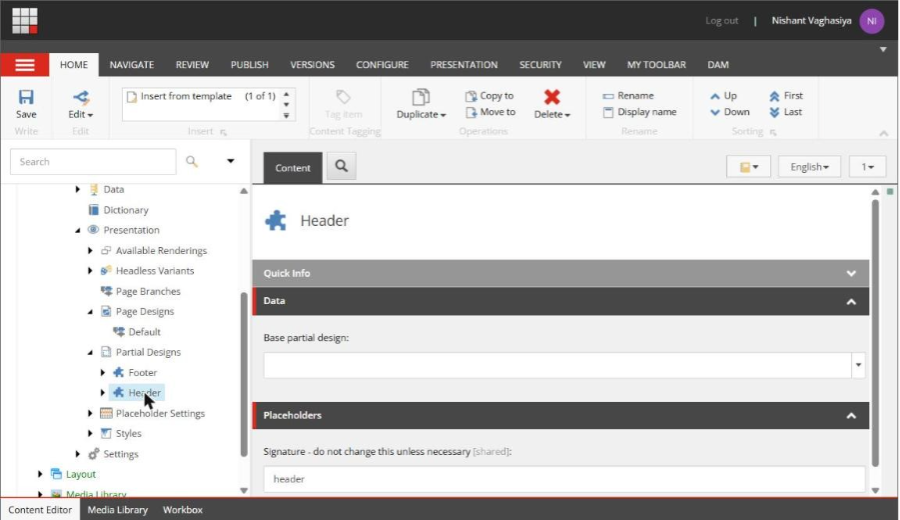
Header partial design – Base partial design and Signature fields
- Base partial design: lets this partial inherit the components of another partial design.
- Signature: a unique key Sitecore uses for the partial's placeholders. As the field label says, do not change it unless necessary.
Step 2: Create a new partial design
Let's say the marketing team wants a different header on campaign landing pages. Instead of changing the main header, I created a new partial design. Select the Partial Designs folder and open the Folder tab. It shows the insert options and the existing items:
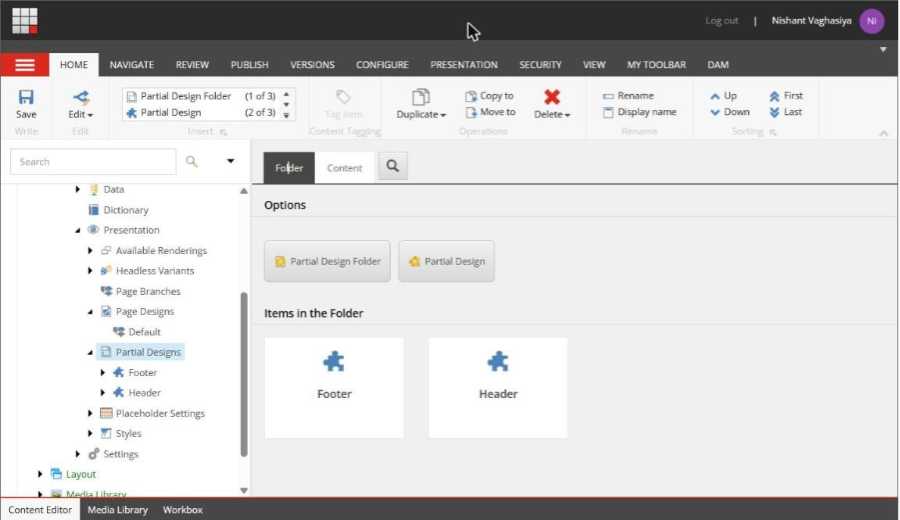
Partial Designs folder – insert options and existing items
Click Partial Design and enter a name. I used Campaign Header.
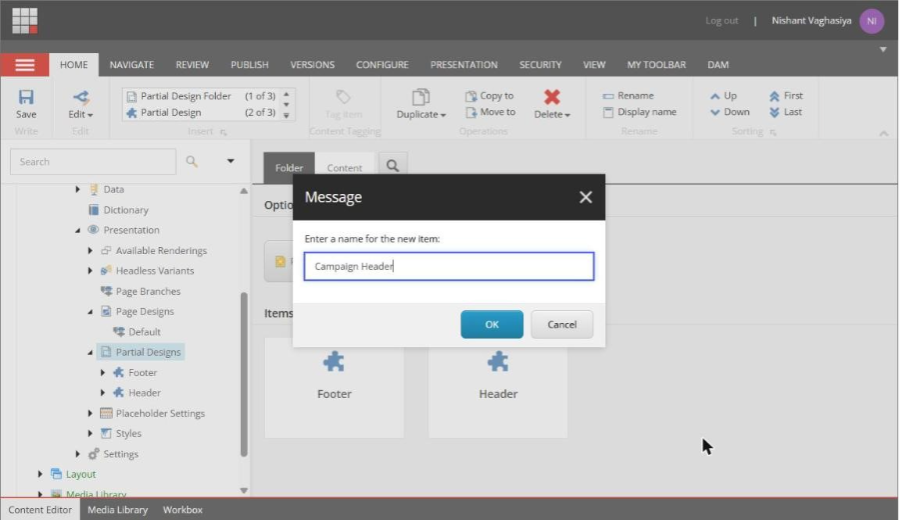
Naming the new partial design
After clicking OK, the item is created. Notice that the Signature is filled in automatically from the name (campaign-header).
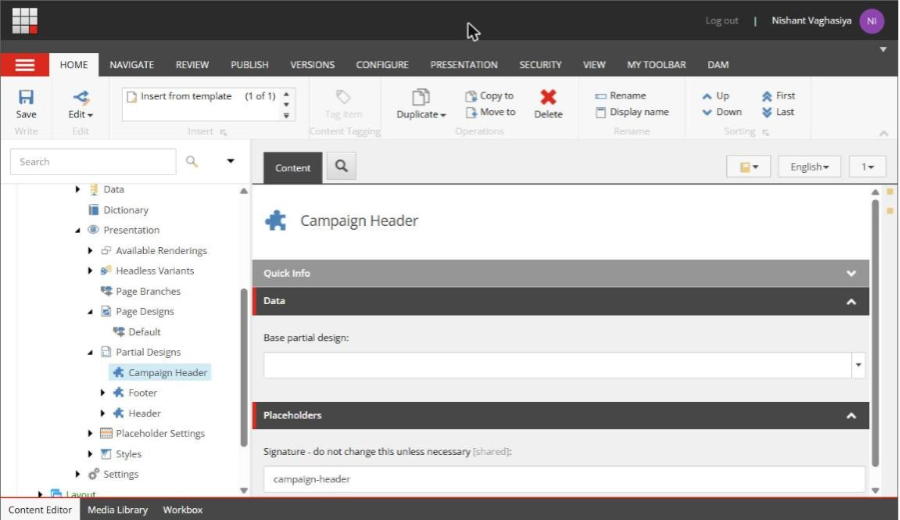
Campaign Header created with its Signature
Step 3: Reuse the main header with a base partial design
A campaign header usually looks like the main header with small changes. So instead of rebuilding the logo and navigation, open the Base partial design dropdown and select Header:
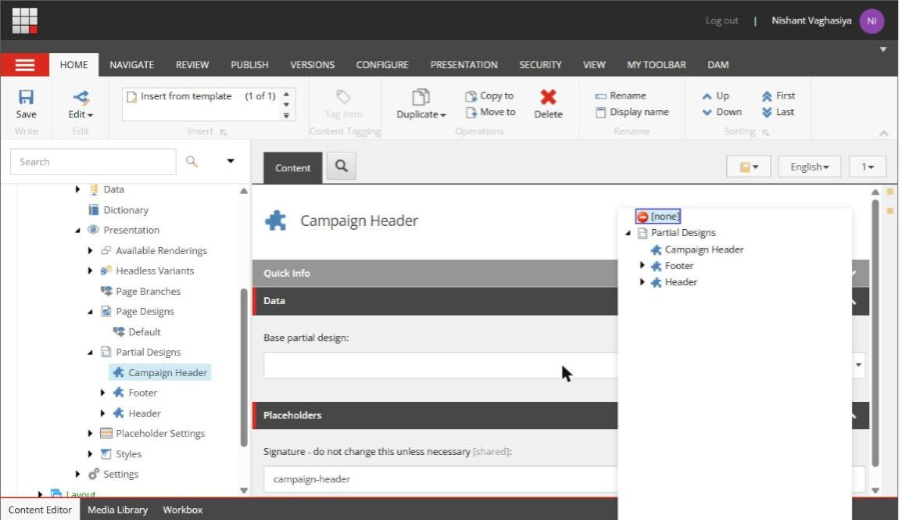
Selecting a base partial design
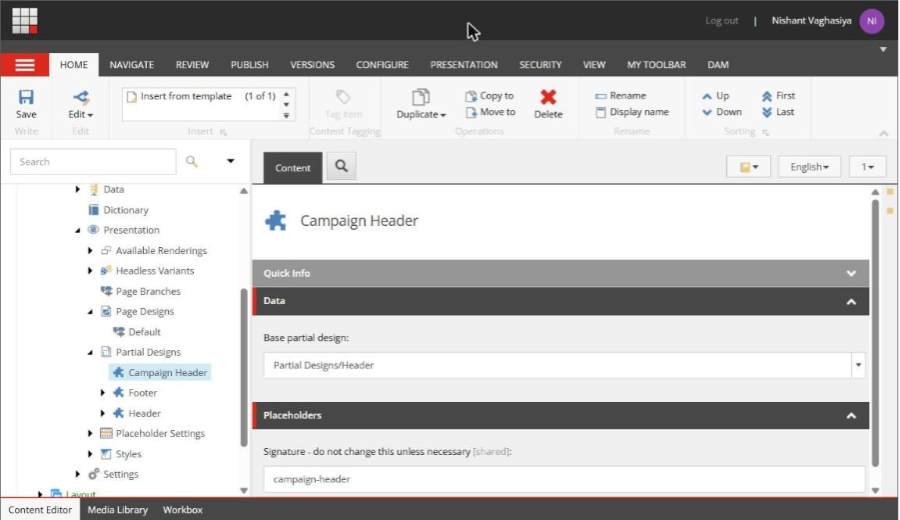
Campaign Header now inherits from Header
Save the item. Now open Pages, go to Templates > Partial designs, and you can see that Campaign Header already shows the Skate Park logo and navigation, inherited from Header:
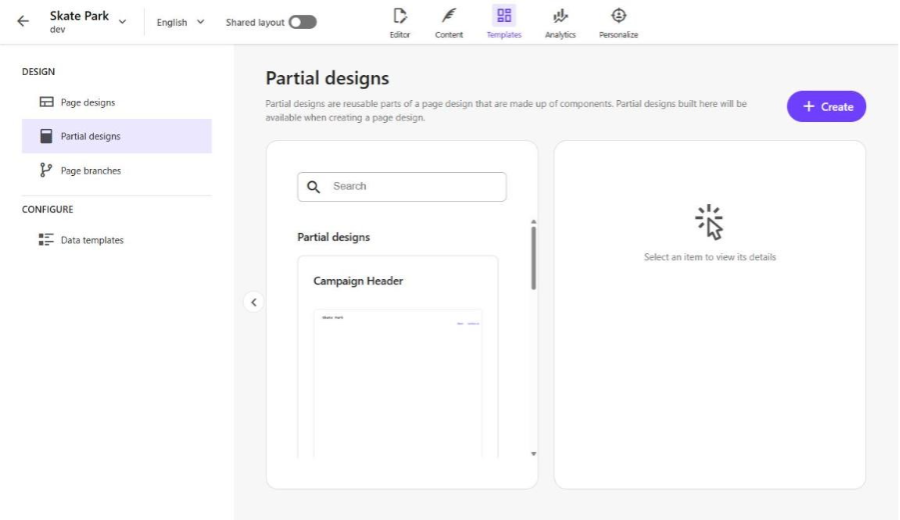
Partial designs in Pages – Campaign Header inherits the header components
From here, open the partial design in Pages and add only the extra components the campaign needs. Put header components in the headless-header placeholder and footer components in headless-footer. The headless-main placeholder is left for page content.
Note: Data sources used in a partial design (navigation, logo, footer links) should live in the site-level Data folder, not under a single page's local Data folder. Otherwise other pages that use the partial can show empty or wrong content.
Step 4: Look at an existing page design
Now open Page Designs > Default. A page design has one main field, Partial designs. The left side lists all partial designs of the current site, and the right side shows the ones selected for this design, in render order:
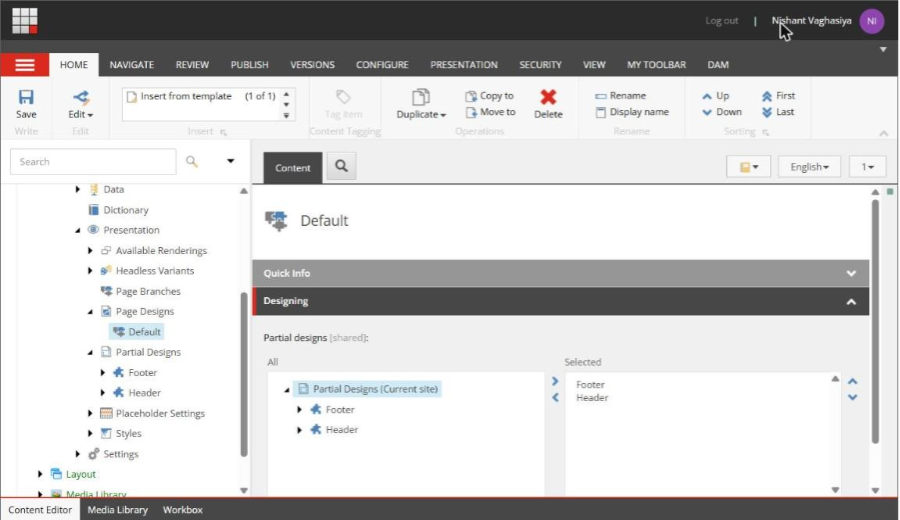
Default page design – Footer and Header selected
A page design does not hold components of its own. It only says which partial designs appear and in what order.
Step 5: Create a page design that combines partials
Select the Page Designs folder and open the Folder tab. Click Page Design and enter a name. I used Campaign Landing.
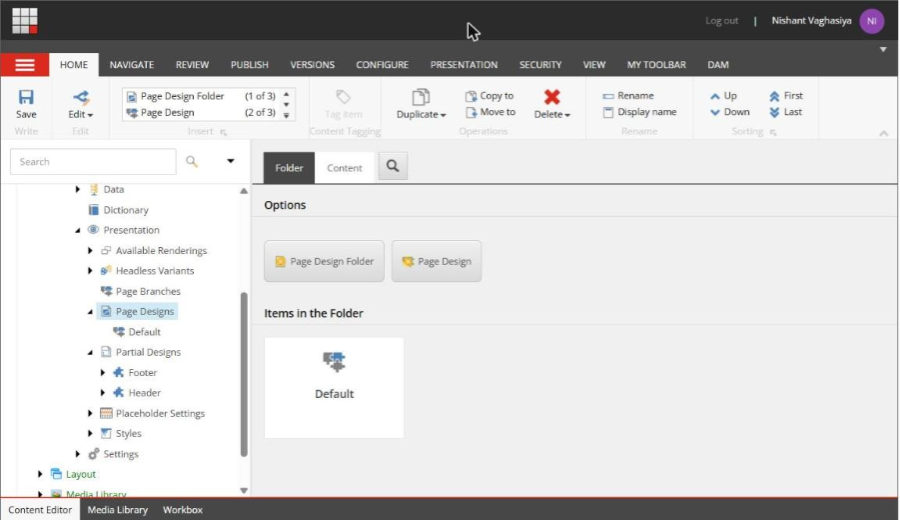
Page Designs folder – insert options
In the Partial designs field, double-click Campaign Header and Footer to move them to Selected, then click Save. Use the up and down arrows on the right to change the order.
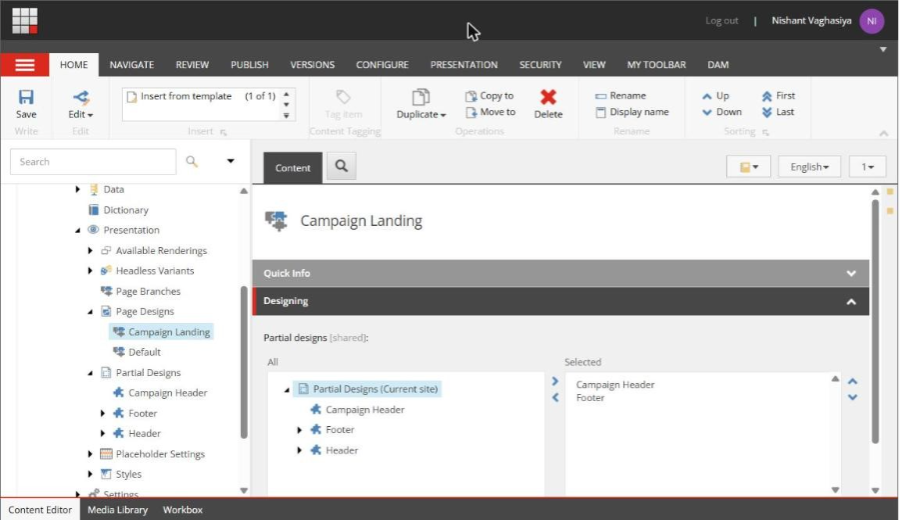
Campaign Landing page design with Campaign Header and Footer
Back in Pages, under Templates > Page designs, the preview shows the combined result: the campaign header at the top and the footer below.
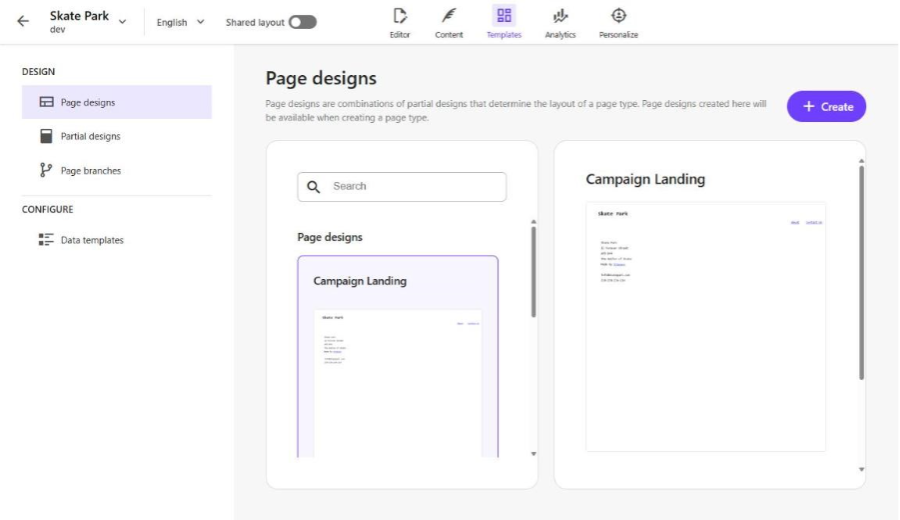
Campaign Landing preview in Pages
Step 6: Map page templates to a page design
A page design does nothing until it is assigned. The usual way is to map it to a page template, so every page created from that template gets the design automatically.
In the Content Editor, select the Page Designs folder and open the Content tab. The Template to design mapping field maps each template to a page design. In my site, the Page template is mapped to Default:
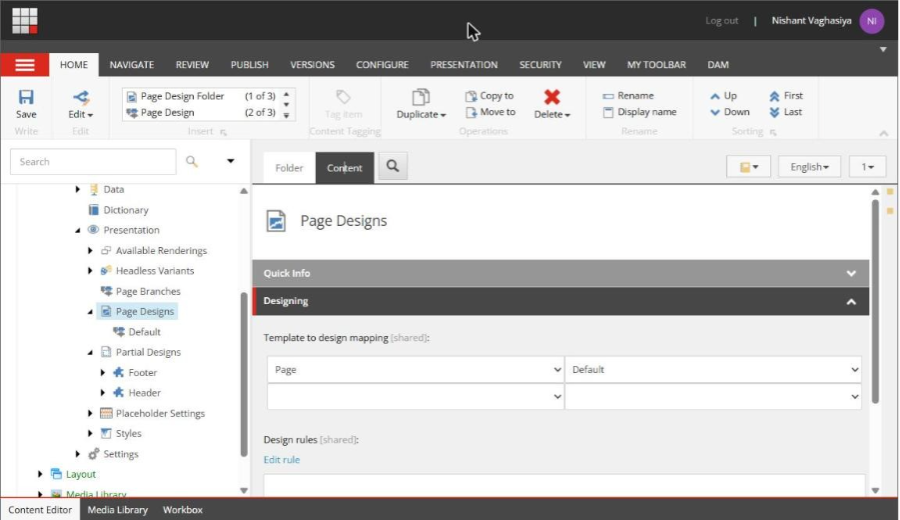
Template to design mapping on the Page Designs folder
The same mapping is easier to manage in Pages. Go to Templates > Data templates. The Page design column shows the design for each template:
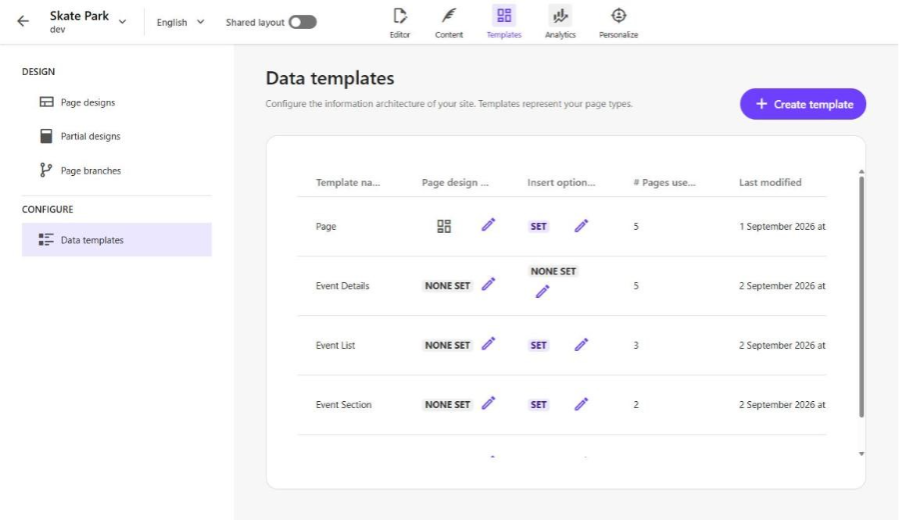
Data templates in Pages – Page design column
This screen is also a quick health check. In my demo site, Event Details, Event List and Event Section show NONE SET, which means pages from those templates get no header or footer from a page design. Click the pencil icon to pick a design:
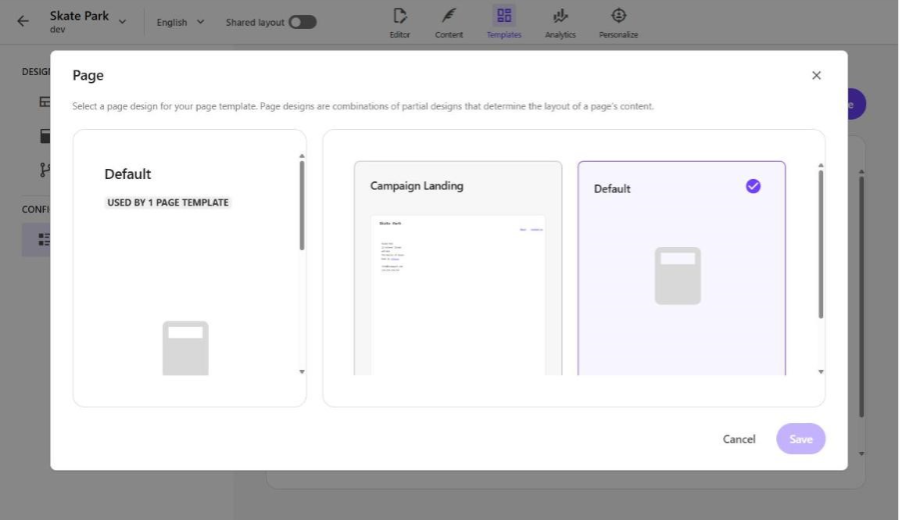
Selecting a page design for the Page template
Note: Below the mapping field there is also a Design rules field. It lets you assign page designs with rules instead of a fixed template mapping. For most sites the template mapping is enough.
Step 7: Override the design for a single page
Sometimes one page needs a different shell, for example a single campaign page built on the normal Page template. You don't need a new template for that. Open the page item, go to the Designing section and pick a design in the Page design field:
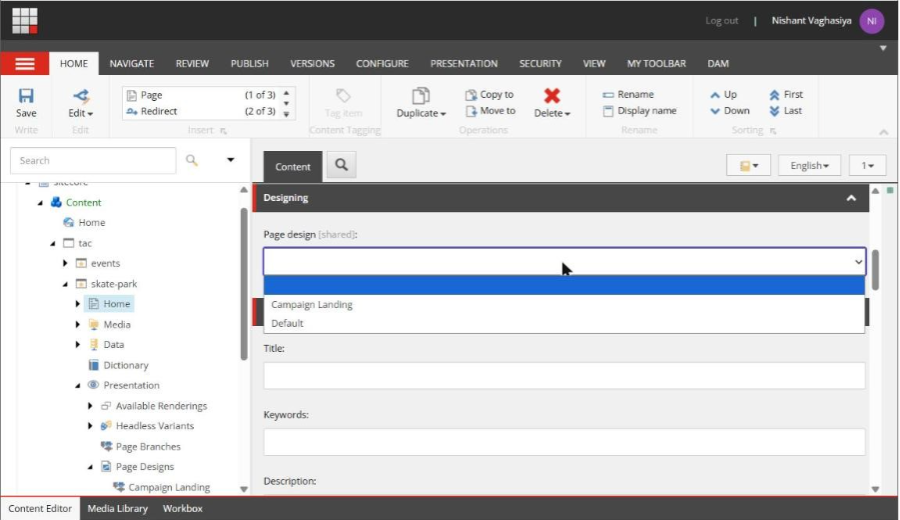
Page design field on a page item
When this field is empty, the page uses the design from the template mapping. When it is set, it overrides the mapping for that page only. In Pages, authors can do the same from the page settings.
Step 8: Publish everything together
Designs are spread across several items, so publishing only the page is not enough. Publish:
- The partial designs you created or changed
- The page designs
- The Page Designs folder item, because it holds the template mapping
- The shared data sources used by the partial designs
Note: If the header shows in Pages but not on the live site, the first thing to check is whether the partial design and its data sources were published.
When to use which
| Scenario | Use | Why |
| Header and footer on every page | Partial designs, included in every page design | One place to edit, consistent everywhere |
| Blog posts need a sidebar, other pages don't | New partial (Sidebar) + new page design (Article) | Keeps the default design clean |
| Campaign pages need a different header | New partial with Header as base + new page design | Variant without touching the main header |
| One page needs a different shell | Page design override on that page | No new template needed |
| Pages of one type should start with a hero and two teasers | Page branch, not a design | That is page content in headless-main |
| A component appears on one page only | Place it on the page | A partial for one use adds overhead |
Things to watch out for
| Problem | Cause | Fix |
| Header missing on some pages | Template has no page design (NONE SET) | Map the template in Data templates or Template to design mapping |
| Header shows wrong or empty content | Partial uses a page-local data source | Move data sources to the site-level Data folder |
| Header mixes with page content | Components placed in headless-main inside the partial | Use headless-header and headless-footer |
| Header missing on the live site only | Partial design or data sources not published | Publish partials, page designs, the mapping and data sources |
| Header empty in another language | No language version of the partial's data sources | Add language versions |
| Two headers to maintain | Header copied to change one link | Use a base partial design instead of a copy |
| Header components repeated on every page | Header placed on template standard values | Move them into a partial design |
How this pairs with Page Branches
Page designs and page branches solve different halves of the same page. The page design decides the shell (header, footer, sidebars) through its partial designs. The page branch decides the starting content inside headless-main, such as a hero and two teasers. Used together, a new campaign page gets the Campaign Landing shell from the design and its starting components from the branch, and authors only edit the main content.
Where this is useful
- Sites with many page types that share one header and footer
- Campaign or microsite pages that need a different header without a new site
- Multi-site setups where each site needs its own header but the same structure
- Teams that want marketers to change the header in Pages without a developer touching every page
This is how partial designs and page designs work together in SitecoreAI. Most of the value comes from getting the structure right at the start: shared parts as partial designs, a small set of page designs, and every template mapped. Once that is in place, a header change is one edit and one publish.

Related Blogs

Every content team hits the same wall eventually: one campaign idea needs to become a…
Read More
If you have worked with Sitecore for a while you may remember when Sitecore marketing…
Read More
On September 22, 2026, Sitecore deprecated Explorer. Its core jobs, creating content and…
Read MoreArroact is ready to help you grow.
Our Office

Westface, 519/520, Bhagwat Bungalows Rd, Thaltej, Ahmedabad, Gujarat 380059


Pay us a visit for a cup of coffee. We’ll be more than happy to welcome you.