
AEM Workflow Explained: How It Works and Why It Matters
Managing content through the Adobe Experience Manager (AEM) isn't simply a matter of creation - it also includes several elements, including control, validation, and governance of the content prior to publication/deployment.
One of the key components to providing structure for this content management is the AEM Workflow Engine, which provides the means for managing content-related tasks through the use of structured workflows. Workflows include defining processes for how content moves through the various checkpoints in the application before it can be published as a live page.
There are multiple stages of a typical content lifecycle, with the main stages being authoring, reviewing, approving, and finally publishing. As such, workflows are an important aspect of AEM implementations in enterprise environments.
This article will cover how to build and implement a basic approval workflow using AEM.
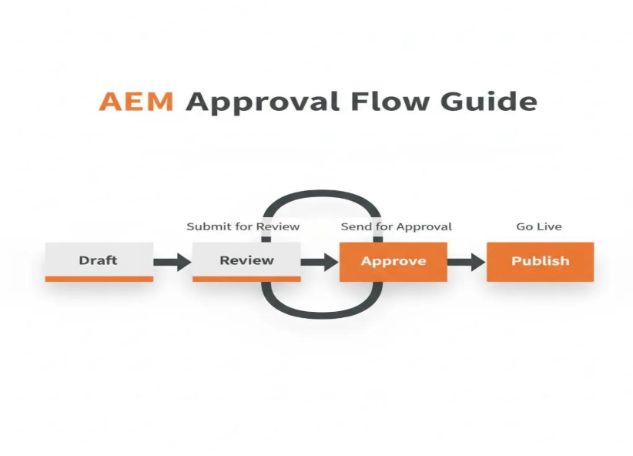
A standard AEM workflow follows this structure:
Draft – Content is created by the author.
Review – Content is reviewed for quality and accuracy.
Approve – A stakeholder approves or rejects the content.
Publish – Approved content goes live
If the content is rejected, it will loop back to the review stage before it continues through the next steps of the workflow.
Step-by-Step: Creating and Executing an Approval Workflow
Step 1 - Develop a new Workflow Model
All workflows in AEM start off as a workflow model which basically determines the available steps and the order in which they are executed.
Go to:
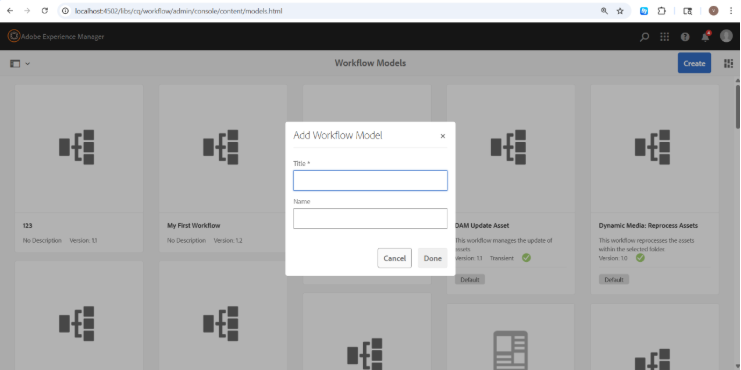
Tools > Workflow > Models
Click on Create, then name your workflow model. For our purpose:
My First Workflow
Now, edit your newly created workflow model.
Step 2 - Add and Configure a Participant Step
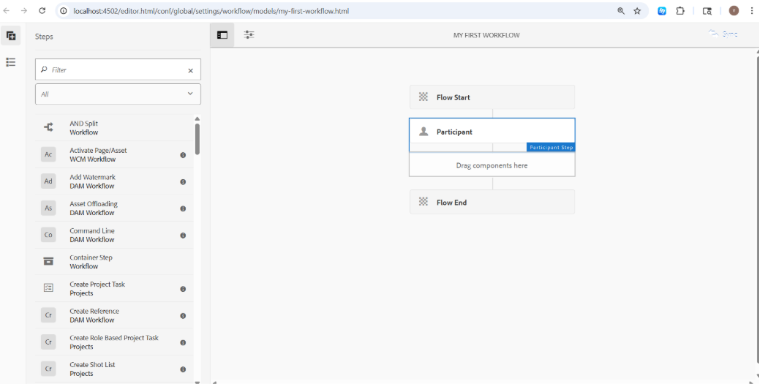
In the editor:
- Delete the default step
- Add a Participant Step to the flow diagram by dragging and dropping it between the start and end nodes
The diagram will now appear as follows:
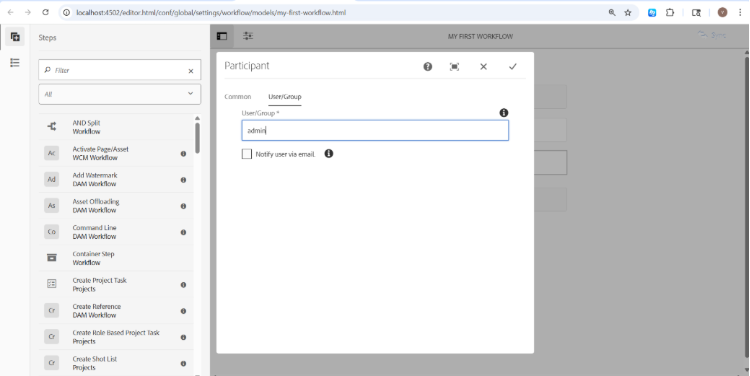
Configuration Step
To configure a step, double-click on it to display the configuration window and fill in the following:
Title: Approval Step
Assignee: admin
An approval step implies that this is a manual step whereby the assignee will have to go through the contents of the step.
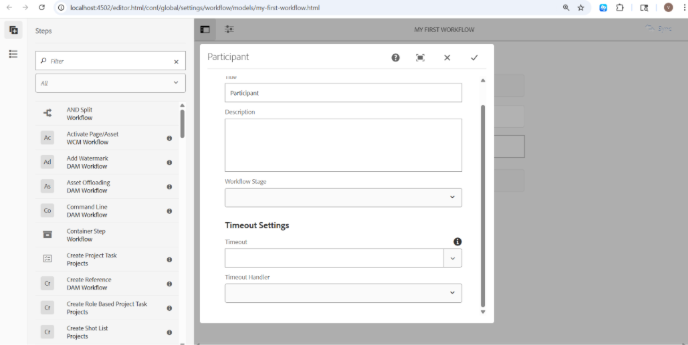
Tip: Under the Notifications tab, turn on the e-mail alert function, as it helps notify the assignee when a task reaches their inbox.
Step 3 - Synchronize the Workflow Model
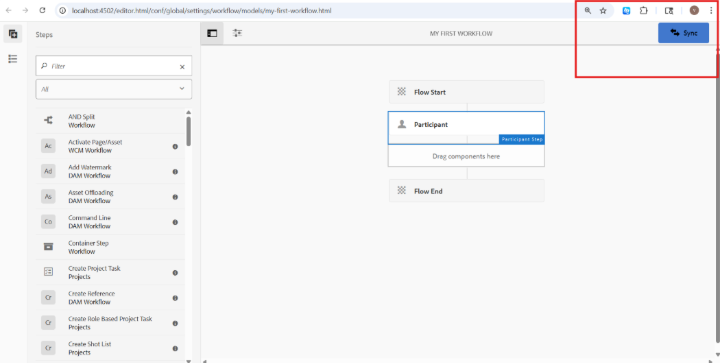
Hit Sync in the upper-right corner of the editor window.
This step is easily overlooked.
!!! Very Important: Sync saves your model into /var/workflow/models under the JCR system. Without syncing, all changes are temporary and won't save your workflow at all. Do NOT skip this step under any circumstances.
Once synchronised, a success message will pop up. Your workflow is now active.
Step 4 - Choose Content that Will Run the Workflow On
Go to:
Sites → Choose a Page
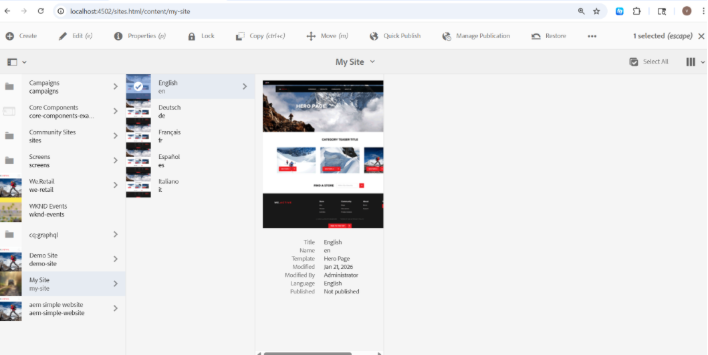
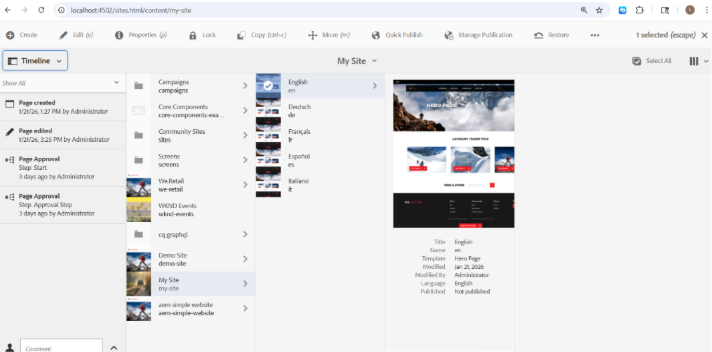
!!! Important: You may run a workflow from Page Properties → Advanced tab, but Timeline mode is recommended for the development stage.
Step 5 – Initiate the Workflow Process
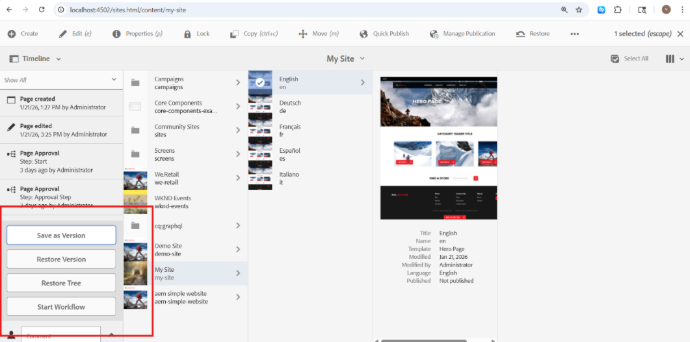
In the dialog box for starting a workflow process:
- At the bottom left, click on 'Start Workflow'.
- Select your workflow model and provide a title accordingly and click on create
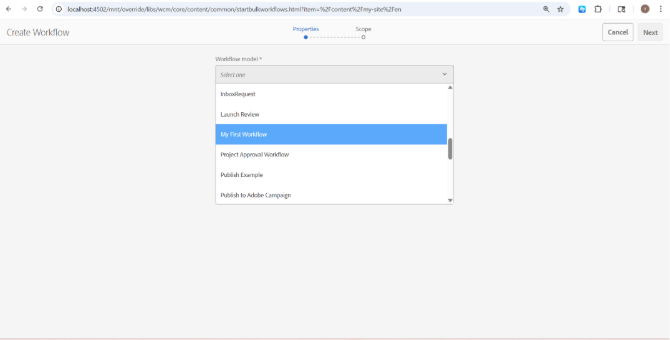
The process is initiated. AEM has created a workflow instance within the JCR (Java Content Repository) and also assigned a task to the admin.
Step 6 – Reviewing and Completing the Task in the Inbox
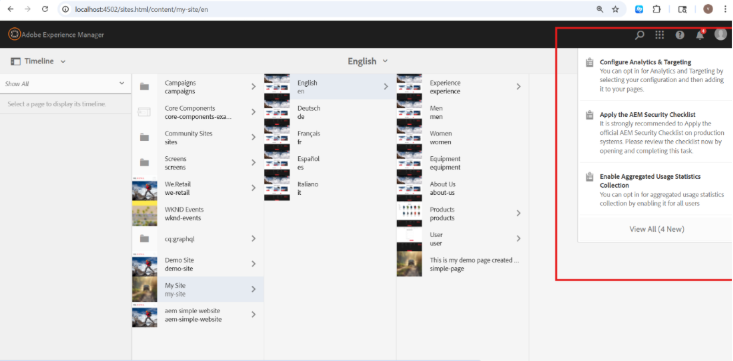
Go to the AEM Inbox (bell 🔔 in the upper toolbar).
Here, the admin will have access to the assigned tasks, which include the following:
- Title of the Workflow
- Payload (page on which the workflow is being executed)
- Workflow status
- Date created
- Workflow Instance ID
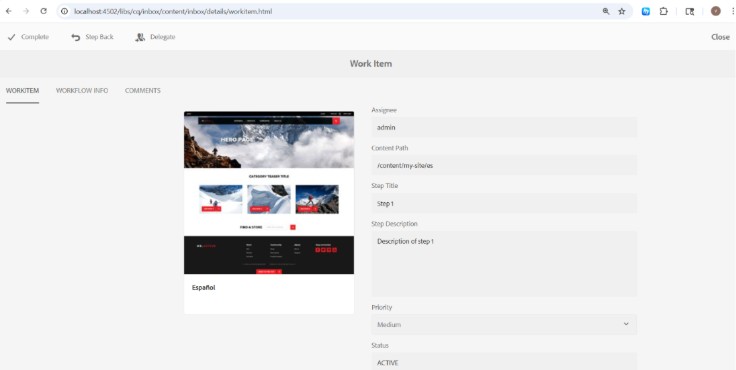
The admin can:
- Review the associated content
- Provide additional comments to the author (optional)
- Click 'Complete' to complete the workflow
- Click 'Reject' if they want to send it back for the review stage
Upon completion, the workflow reaches the end step and becomes COMPLETED.
Step 7 - Verify the Workflow in the Timeline
Sites → Select Page → Timeline
Here, you can see:
- Workflow start event
- Approval step completion
This provides full visibility into the workflow lifecycle.
Conclusion
By using an approval workflow in AEM , you are creating a systematic way for your content to be reviewed between its creation and publication. Rather than letting users publish their content freely, the workflow acts as a gate that requires content to first be reviewed.
Inbox provides the reviewers with one place to keep track of all tasks at hand. The Timeline enables both the author and administrator to see the progress of the workflow at every step of the way.
This concludes our discussion about how AEM is used in a business setting – one where content quality and controlled publishing are of utmost importance.
Going further, we may add other features such as dynamic participant assignment, OR splits, dialog actions to gather information, and finally OSGi process steps.

Related Blogs

Adobe Experience Manager (AEM) as a Cloud Service provides a local Software Development…
Read More
For years, we built websites for two audiences: people and search engine crawlers. That…
Read More
Migrating a website to a new platform has always meant weeks of manual content mapping,…
Read MoreArroact is ready to help you grow.
Our Office

Westface, 519/520, Bhagwat Bungalows Rd, Thaltej, Ahmedabad, Gujarat 380059


Pay us a visit for a cup of coffee. We’ll be more than happy to welcome you.