Building a Custom AEM Text Component with Dialog, HTL & Deployment
In AEM implementations in the real world, development of components that are reusable and user-friendly is vital in order to ensure the scalability of the content architecture. The process involves developing a new Text Component from scratch, from inception through deployment and testing.
Quick Overview
The task was to create a component which is the following:
- Addable from AEM component browser
- Allowing user inputs using a dialog (Rich Text Editor)
- Rendering dynamic content through HTL
- Package deployable using Maven
- Compatible in Author and Publish environments
Component Structure
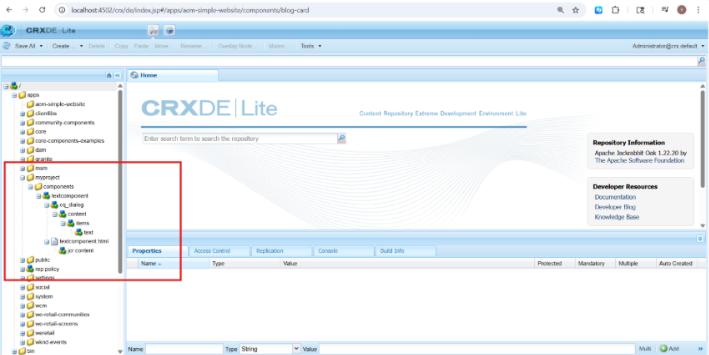
The component is developed from:
/apps/myproject/components/textcomponent
Important settings:
jcr:primaryType="cq:Component"
jcr:title="Text Component"
componentGroup="My Project"
sling:resourceSuperType="core/wcm/components/text/v2/text"
As a result of inheriting from the Core Text Component, rich text editor capabilities can be automatically utilized.
Authoring Dialog (Granite UI)
To provide input for the author via the Granite UI component, a dialog can be created in the following way:
Dialog Configuration:
<text
sling:resourceType="granite/ui/components/coral/foundation/form/richtext"
fieldLabel="Text"
name="./text"/>
This will provide an RTE (Rich Text Editor) type of user interface that allows users to enter content with formatting.
HTL Rendering
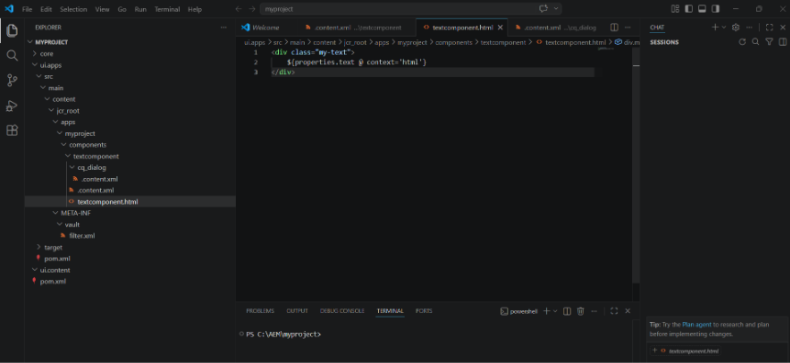
The component output is handled using HTL:
<div class="my-text">
${properties.text @ context='html'}
</div>
This ensures:
- Dynamic binding of authoring content
- Safe HTML content rendering
- Clean separation of presentation and logic
Build and Deploy
The component is packaged with Maven:
mvn clean install
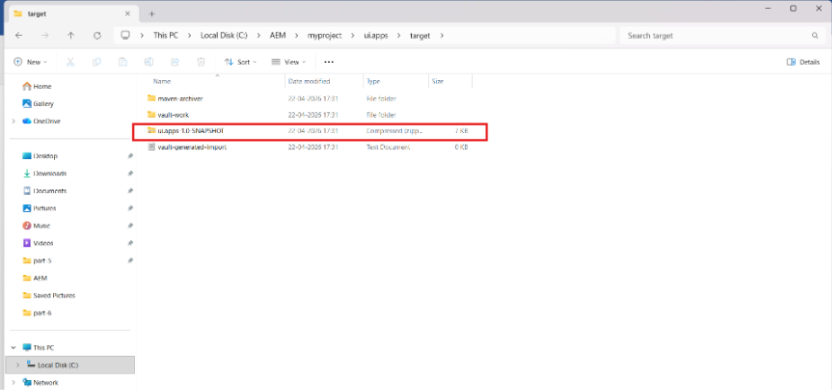
This results in a deployable content package:
ui.apps-1.0-SNAPSHOT.zip
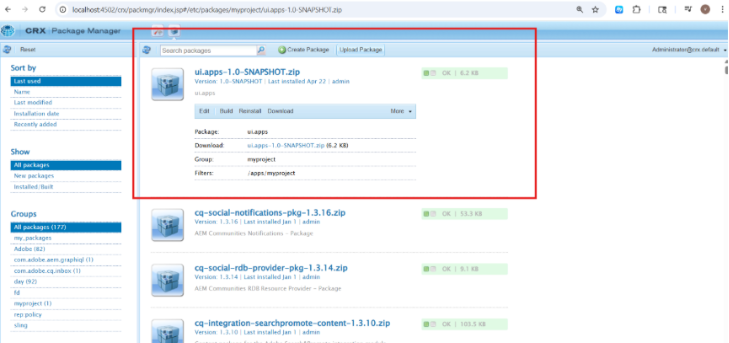
The package is installed through the CRX Package Manager and the component is available in the AEM instance.
Template Integration
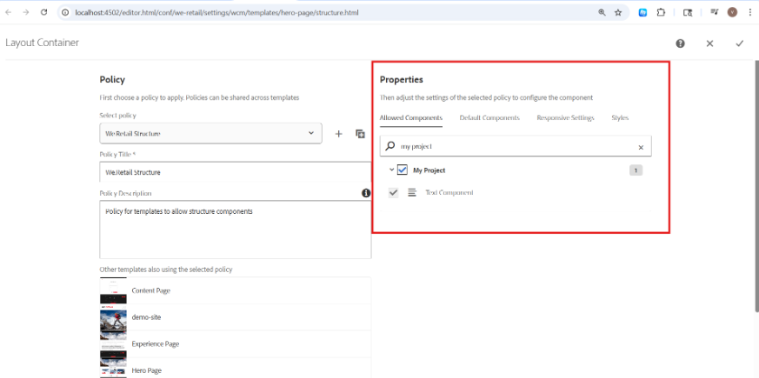
To make the component available to authors, it needs to be specifically allowed in the template:
- Open Template Editor
- Select Layout Container
- Set Policy
- My Project → Allow Text Component
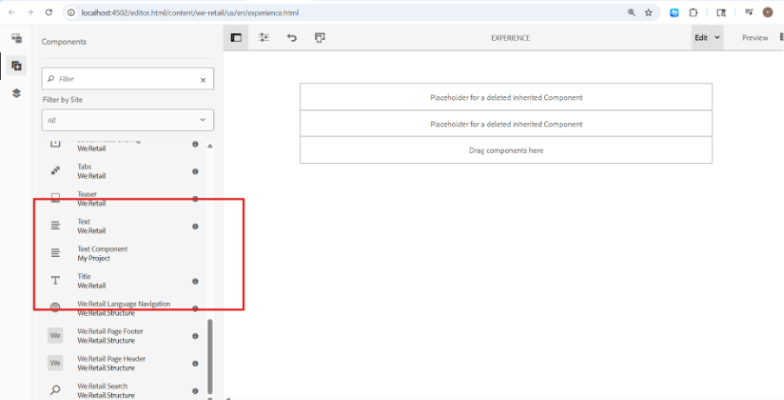
Important: If you don’t do this configuration, the component won’t show up in the editor sidebar.
Writing Experience
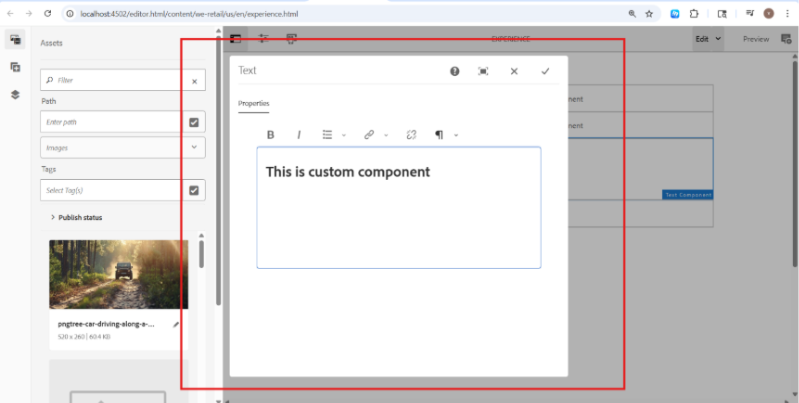
When enabled:
- The component can be dropped onto a page
- Authors can enter formatted content via the dialogue
- Content is dynamically rendered on save
This guarantees a seamless and intuitive authoring experience.
Validation on Publish Instance
To verify real-world behaviour:
- The Publish instance is launched
- From the author the page is published
- Output is verified by:
http://localhost:4503/content/we-retail/us/en/experience.html
This confirms that the component works correctly outside the authoring environment.
Key Highlights
The implementation showcases the following key AEM concepts:
- Project structure and component development using CRXDE
- How to Create Dialogues with Granite UI
- HTL-based rendering and data binding
- Inheritance strategy of the core component
- Policy template configuration
- Maven deployment workflow
- Author vs Publish architecture
Common Challenges
During development a number of typical issues were addressed:
- Component not visible → fixed by template policy configuration
- Property mismatch → verify that dialogue (./text) matches HTL (${properties.text})
- Maven command issues → fixed by setting environment variables properly
- Package deployment confusion solved by reinstalling updated packages
These are real world scenarios for AEM development.
Summary
Building a custom component in AEM is not only about knowing how it is structured but the whole lifecycle of it from creation, configuration, and deployment to validation.
This implementation shows how to combine AEM core functionality with custom development to create scalable, reusable components that meet enterprise standards.

Related Blogs

Adobe Experience Manager (AEM) as a Cloud Service provides a local Software Development…
Read More
For years, we built websites for two audiences: people and search engine crawlers. That…
Read More
Migrating a website to a new platform has always meant weeks of manual content mapping,…
Read MoreArroact is ready to help you grow.
Our Office

Westface, 519/520, Bhagwat Bungalows Rd, Thaltej, Ahmedabad, Gujarat 380059


Pay us a visit for a cup of coffee. We’ll be more than happy to welcome you.