
Integrating Umbraco AI in the Backoffice Using Umbraco AI Packages
Introduction
Umbraco AI packages are very helpful for daily development tasks in the Backoffice. Using Umbraco Copilot, developers can create templates based on specific requirement,generate content, and perform multiple tasks by simply providing commands.
In this blog, I will explain how to set up Umbraco AI locally and integrate it into the Backoffice step by step.
Required Packages
Install the following NuGet packages:
- dotnet add package Umbraco.AI --version 1.0.0
- dotnet add package Umbraco.AI.OpenAI --version 1.0.0
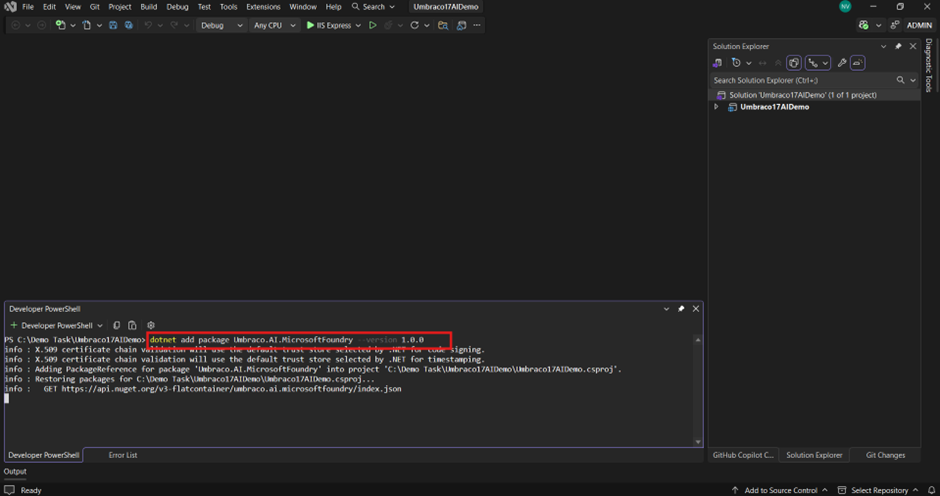
- dotnet add package Umbraco.AI.MicrosoftFoundry --version 1.0.0
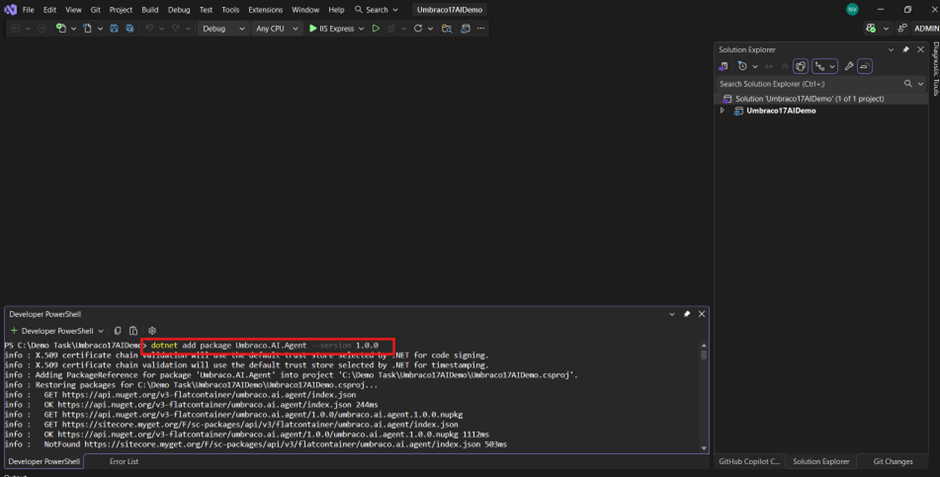
- dotnet add package Umbraco.AI.Agent --version 1.0.0
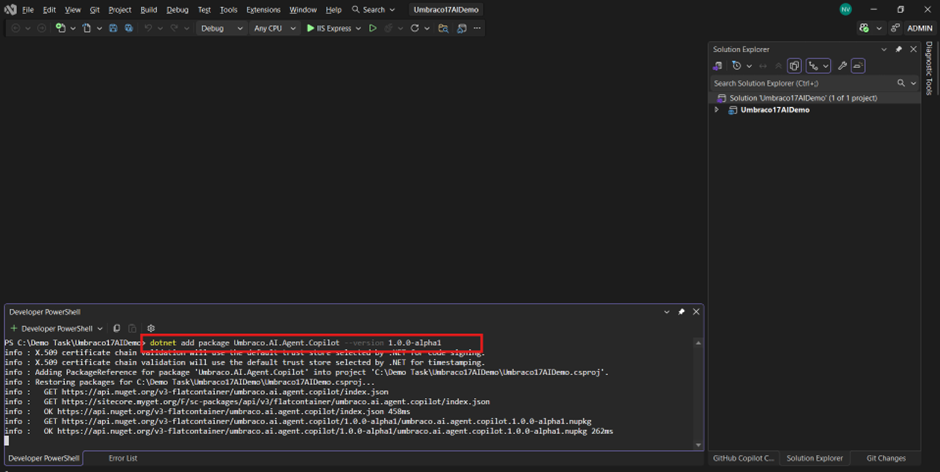
- dotnet add package Umbraco.AI.Agent.Copilot --version 1.0.0-alpha1
Step 1: Install the Umbraco.AI Package
Open Visual Studio, go to the Package Manager Console, and install the Umbraco.AI package.
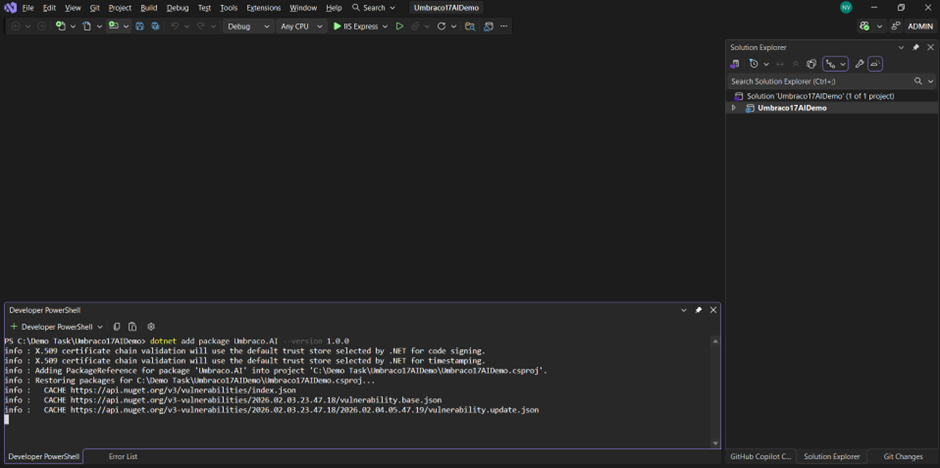
After installation, run the project and open the Backoffice. Navigate to the Settings section, where the UI will appear as shown in the image below.
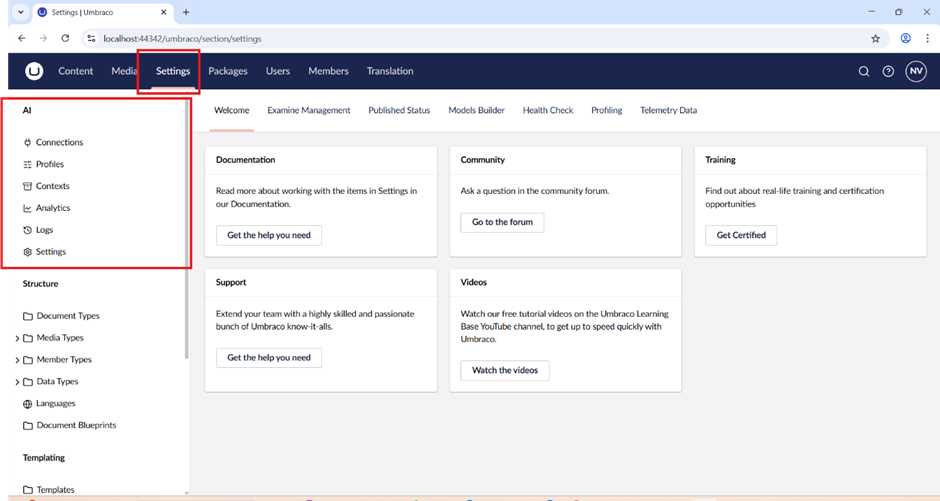
Step 2: Verify AI Options in Backoffice
After exploring all available options, you may notice that no AI-related configuration is visible yet. This is because at least one AI provider package is required, such as (e.g., Umbraco.AI.OpenAI, Umbraco.AI.MicrosoftFoundry)
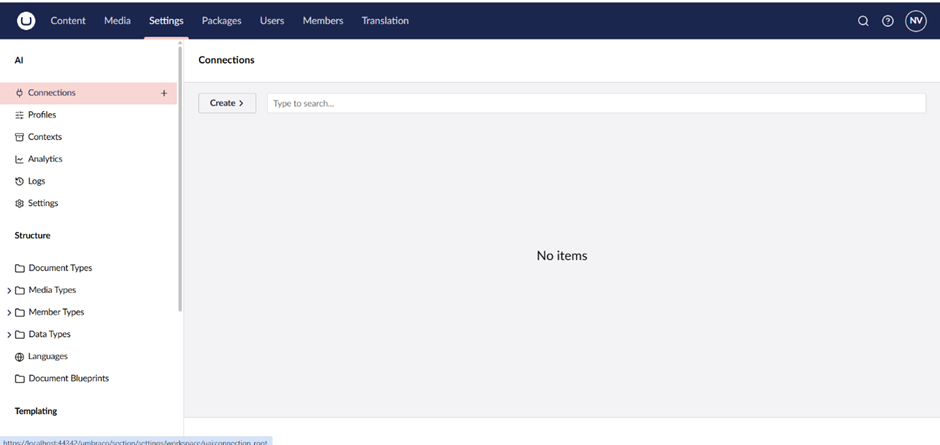
Step 3: Install AI Provider Packages
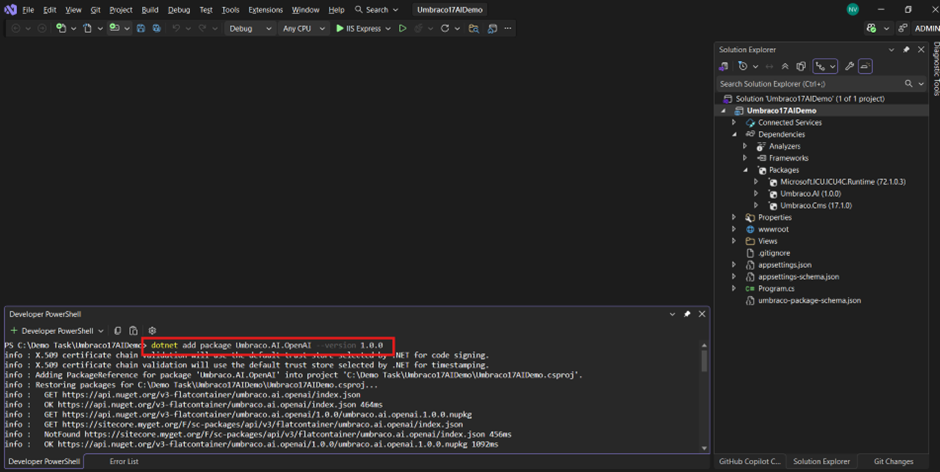
Once installed, open the AI section in the Backoffice settings. You will now see options to configure AI connections, as shown in the image.
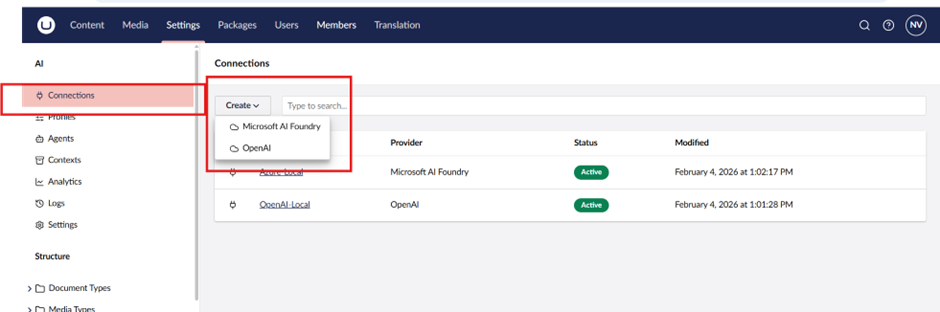
Step 4: Configure Microsoft AI Foundry
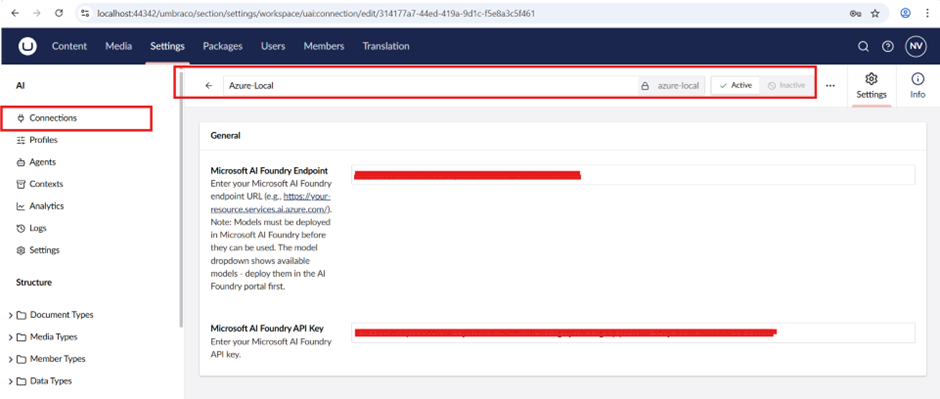
Click on Microsoft AI Foundry. A configuration window will open.
Fill in all required details. Since we are an Azure Partner, accessing the API key and API endpoint from the Azure portal is straightforward.
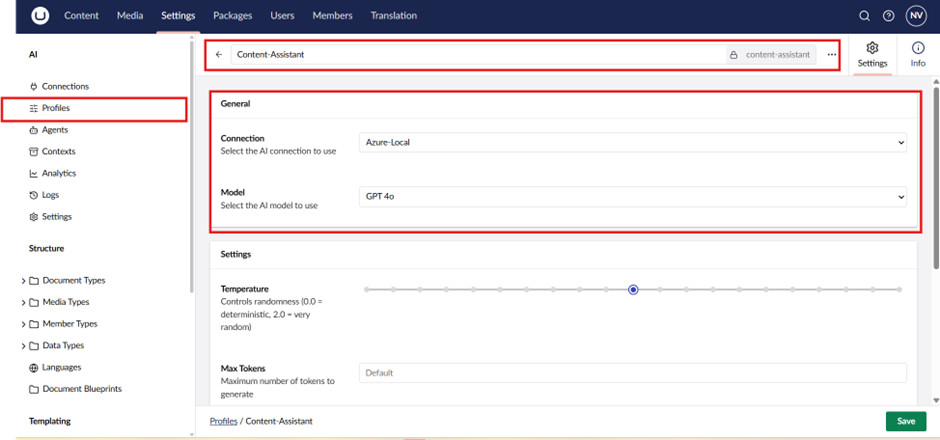
Step 5: Create a Chat Profile
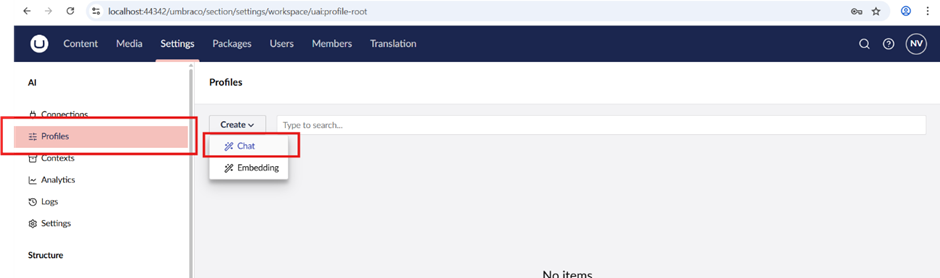
Create a new Chat Profile:
- Set the profile name as required
- Select the previously created AI connection
- Choose the appropriate dedicated AI model
Refer to the images for configuration guidance.
Step 6: Install the AI Agent Package
To use AI functionality inside the Backoffice, a specific Agent is required.so Install Umbraco.AI.Agent.
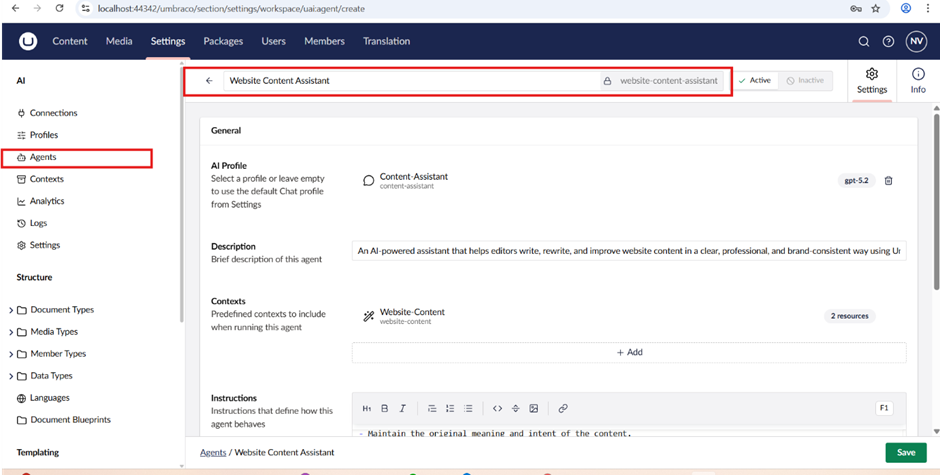
After installation, configure the agent settings:
- Select the AI profile created earlier
- Add a clear description explaining the role of the agent
Step 7: Install the Copilot Package
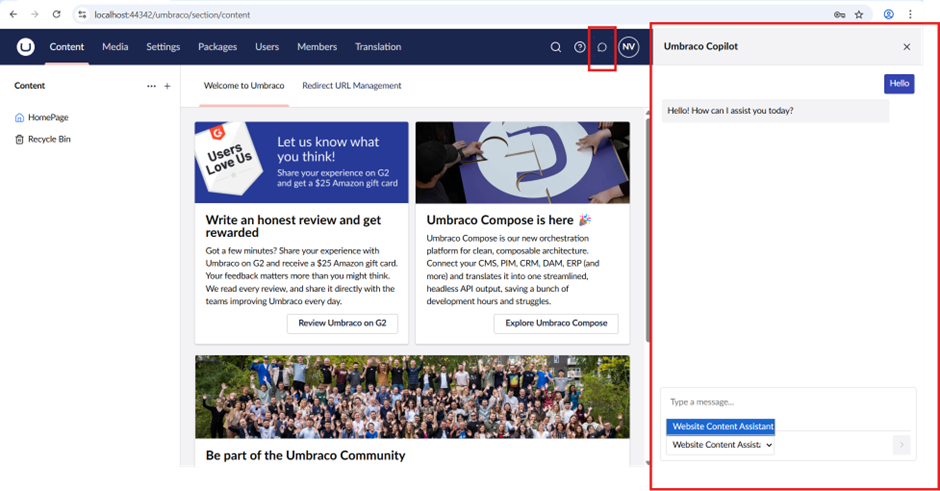
To interact with AI using commands, a chatbot interface is required.so need install package of Umbraco.AI.Agent.Copilot
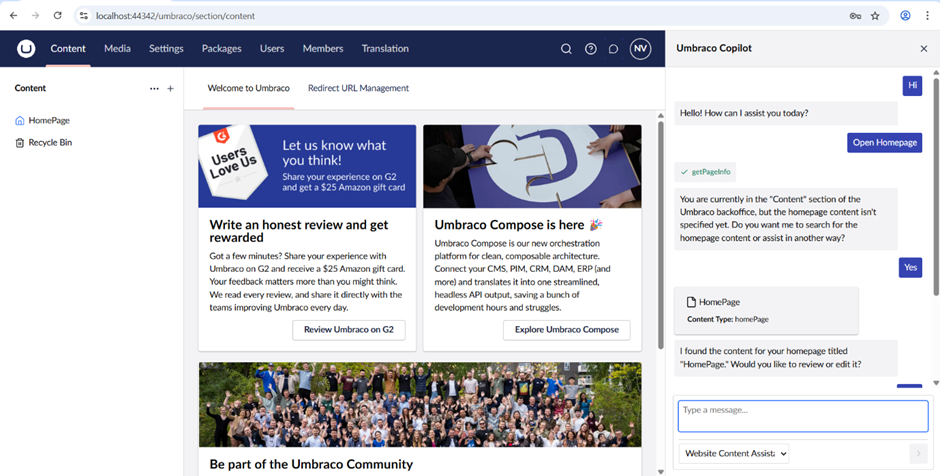
After installation, the Copilot UI will appear in the Backoffice. At the bottom, you will also see an option to select the configured agent.
Step 8: Create Contexts
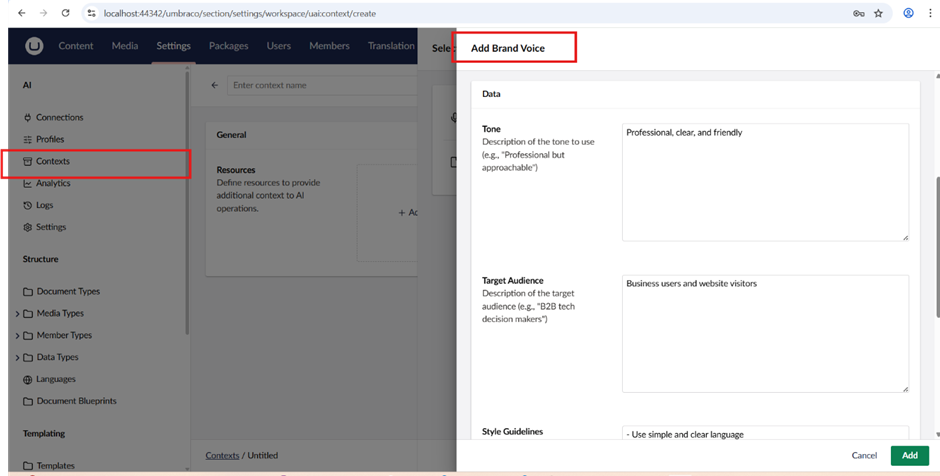
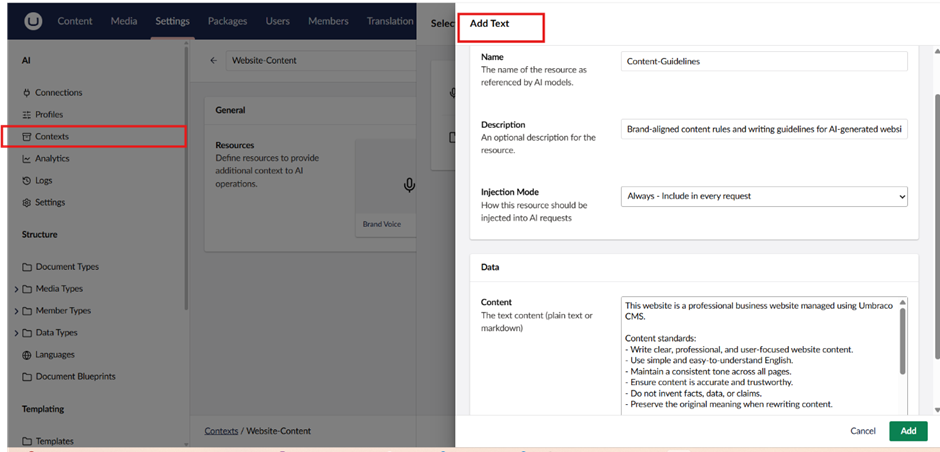
Contexts define what information the AI is allowed to access.
Create the required context entries, such as brand voice and text, as shown in the images.
Step 9: Configure the Default Chat Profile
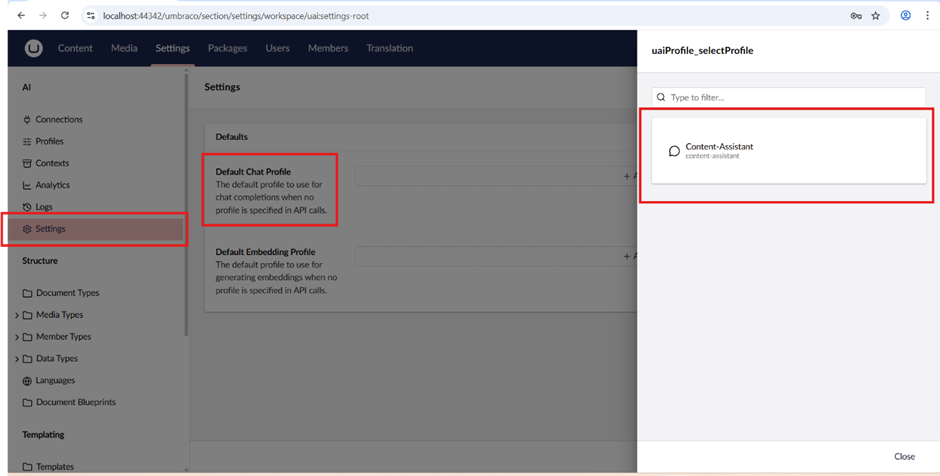
Open Settings and configure the default chat profile so that AI can easily access the configured LLM and model.
Step 10: Final Result
All configurations are now complete.
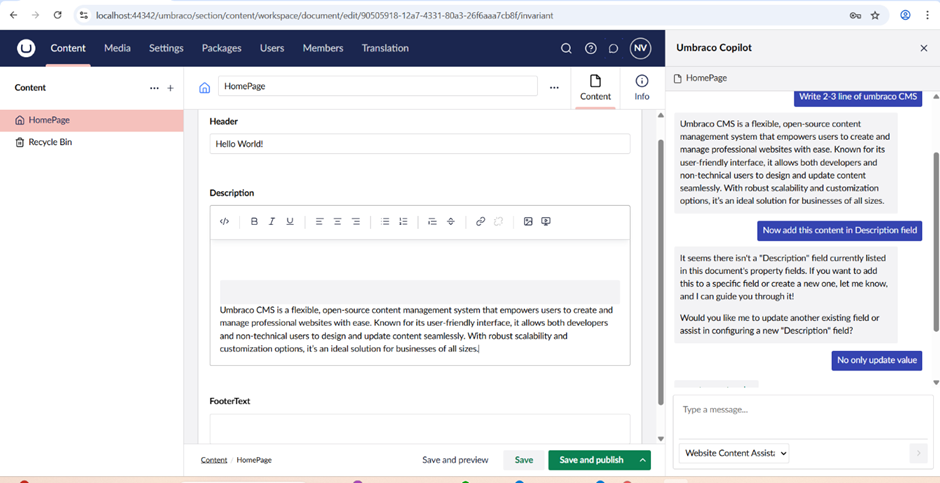
Umbraco AI is successfully integrated and working in the Backoffice.
From a developer’s perspective, this setup is extremely useful—it improves productivity, simplifies content and template creation, and makes daily development tasks much easier.
The final AI experience in the Backoffice is shown in the images below.

Related Blogs

Read More

Read More

Read More